

Creating Content with the Assistant
Use the AI Assistant to create social media posts, email campaigns, and canvassing letters through conversational chat.
The AI Assistant can create complete marketing content through natural conversation. Instead of filling in forms, you describe what you want and the assistant handles the rest.
Social media posts
Data-driven posts
For posts about a location or area (not a specific property):
-
Tell the assistant the location: "Create a post about the average sold price in Chorlton"
-
The assistant fetches market data and suggests a caption
-
Review the caption and request changes if needed
-
The assistant generates an AI image
-
Preview the complete post in a mockup
-
Choose to save it to your Library, publish, or schedule
Property posts
For posts about a specific listing, either from your CRM or from a listing page you paste:
-
Mention the property: "Create a post for 15 Oak Lane, Didsbury", or paste the listing's web address
-
The assistant looks up the property in your CRM, or reads the page you pasted
-
It shows you the property's photos and asks which one you want, or offers to build a collage. Property posts use the listing's own photos, so you are not offered image templates or AI scenes here
-
The caption is written by the same writer that writes your property feed posts, so it writes as your agency, uses the exact asking price, and closes by speaking to the sort of buyer the home would suit
-
Preview and publish as above
The post names the street and area, never the door number, even if you typed one.
Posts about a topic, or about your valuation tool
Not every post needs to be about an area's figures. Ask for a post about a subject and you get one straight back, in a single reply:
- "Write a post encouraging homeowners to use our instant valuation tool"
- "Some tips for people thinking of selling in winter"
- "A post about getting a house ready for viewings"
- "Something about our lettings service"
It writes as your agency, in your usual style, following the same rules as your Content Pack posts.
Tips and advice posts are written straight away. You are not asked for an area, because a post about winter viewings works anywhere.
Posts about your valuation tool get one question first: which area is this for? You can pick one of your report areas, type any town or postcode, or choose No area needed. Give it an area and the post speaks to homeowners there by name and tags that area, which is what local people search for. Choose No area needed and it writes a general version with no place mentioned. You are only ever asked once, and if you already named an area in your request it does not ask at all.
If the post invites people to find out what their home is worth, the assistant ends it with your instant valuation link, not a report link. If you have not set your valuation link up yet, it writes the post without a link and tells you where to switch it on.
Posts like this carry no statistics, on purpose. There is no report behind them, so the assistant will not quote a price, a percentage or a time to sell rather than guess at one. It will not invent a place name either. If you want figures in a post, ask for a post about an area instead and it will build it on a real report.
Your look
Ask for a post with an image and the assistant makes the picture too. The first time it does, it shows you a sample of each look right in the chat, and you tap the one you like:
- Boutique - warm and premium, like a magazine. The same look as your weekly Content Pack posts, and the one you get if you never choose.
- Press - a bold two-colour print, like a screen-printed poster. Your brand colour is one of the two inks, so it is the most distinctive of the three.
- Statement - a large line of type on a block of your brand colour. This one is drawn rather than generated, so it uses your exact brand colour and your own logo, and it is the one look that costs you no credits.
You are only asked once. After that every image the assistant makes uses your look, so your grid holds together instead of looking like it came from three different agencies. Each look has several different compositions inside it, so your posts still look varied.
An image is only made when you ask for one, because generating an image uses credits. The exception is the Statement look, which is drawn rather than generated and uses none. Say "with an image" and you get a picture; just ask for a post and you get the words on their own. Changed your mind? Say add an image and the same post comes back with one, wording untouched.
Editing in chat
After the assistant generates a post, you can:
-
Save the post to your Library (the Posts tab) to come back to it later
-
Ask for caption changes: "Make it more casual" or "Add the price"
-
Ask for a different length: "Make it shorter", "Give me a bit more detail". You are never asked to pick a writing style before it writes; every post comes out at one sensible length and you move it from there
-
Request a new image: "Try a different style"
-
Use Edit Image on the generated image to erase areas or describe changes (e.g. "make the sky a sunset")
-
Change the aspect ratio
-
Edit the caption or change the media from the dropdown menu on the post preview
Email campaigns
Drafting an email
-
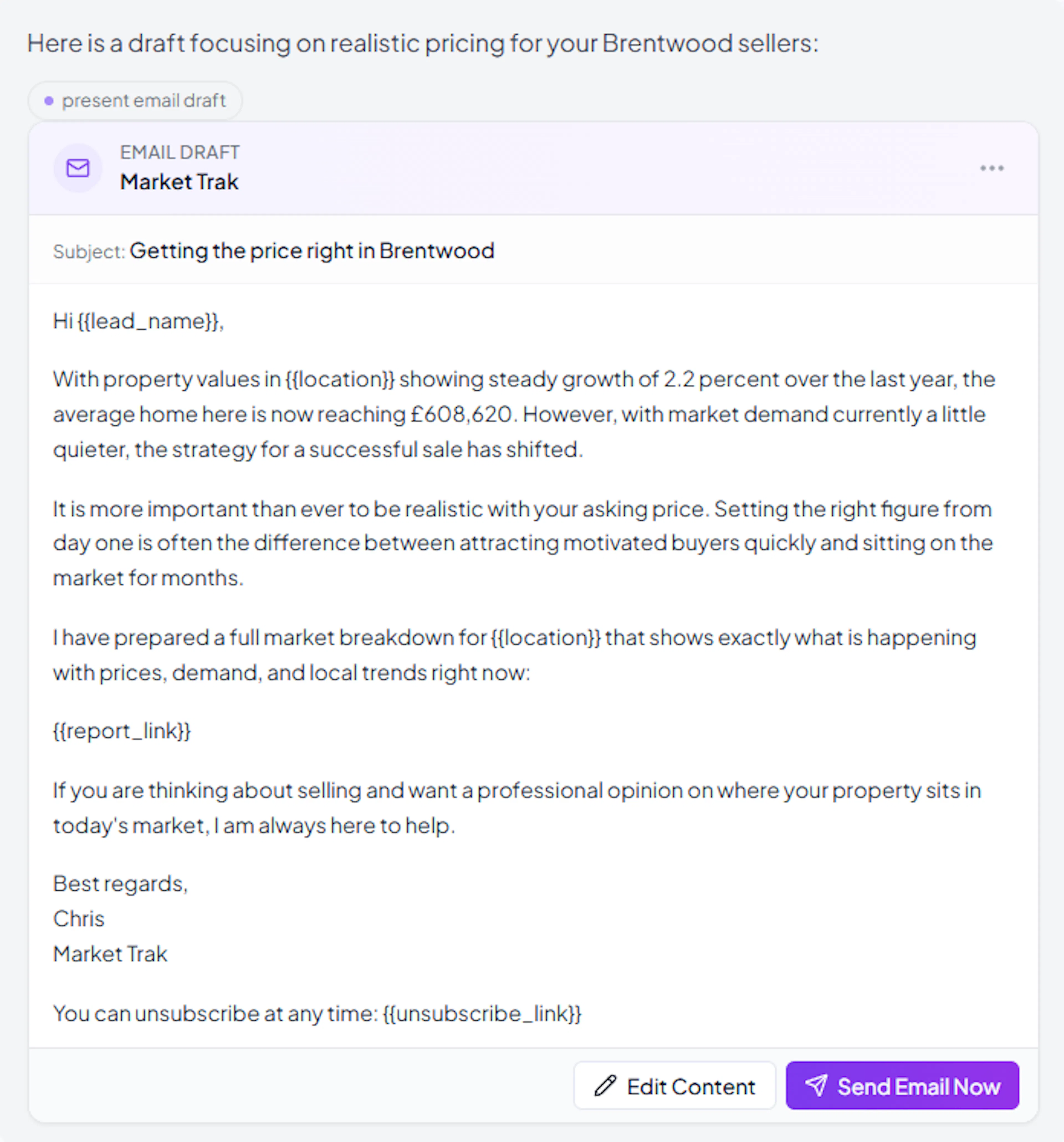
Ask the assistant: "Write an email to my leads about the Didsbury report"
-
The assistant drafts a subject line and email body
-
Review the draft in the chat
-
Request changes: "Make the subject line catchier" or "Add the average price"
Sending the email
Once you approve the draft, the assistant tells you how many leads you have and asks who to send it to. You have three options:
-
Send to all your leads - the campaign goes to every lead in your workspace. Reply with "send to all", "yes", or just "send".
-
Send to leads in a specific area - the assistant filters by location. Reply with "send to leads in Didsbury" or whichever location you want.
-
Send to a single email address - useful for testing or one-off sends. Reply with "send to chris@example.com". The assistant adds that address as a new lead and sends only to them.
The content you see in the preview is exactly what gets sent. The assistant does not rewrite your approved draft. Your campaign is queued and processed in the background; you can navigate away.
Email variables
The assistant automatically includes template variables in your email drafts:
-
{{lead_name}}- personalised with each lead's first name -
{{location}}- the report's location -
{{report_link}}- a clickable link to the report -
{{unsubscribe_link}}- required for compliance
Canvassing letters
Ask the assistant to write a canvassing letter for a specific area:
-
"Write a canvassing letter for Didsbury"
-
The assistant drafts a professional letter with local market data
-
A preview card appears showing your company logo, the letter body, and a QR code linking to your digital report
-
From the preview you can:
- Download as PDF - generates an A4 PDF with your logo, date, letter body, QR code, and company footer, ready for printing
- Edit the content inline
- Copy to clipboard for pasting into another application
Market reports
You can generate a full market report straight from the chat. Ask for one, for example "Generate a market report" or "Create a report for M21", and the assistant walks you through it:
-
Enter the location. Type a postcode in the box that appears. Just like the Generate Report form, it nudges you toward the formats that return the best data: a tip shows if you type a full unit-level postcode (suggesting the shorter outward code, such as M21) or a town name (suggesting a postcode instead).
-
Pick the report type. Choose from three cards: Sellers Guide (a narrative market overview), Data Sheet (a data-focused compilation), or Article Report (a premium, magazine-style report).
-
Choose a theme. For Data Sheet and Article Report, the card opens to show the available looks. Data Sheet offers Default, Dark, and Emerald; Article Report offers Magazine and the cream-and-gold Editorial (Area Spotlight) look. Pick one and the flow continues. Sellers Guide has a single built-in look, so it skips this step.
-
Add a call-to-action link (optional). Add your valuation booking page or any link you want readers to click, or skip it.
The assistant then generates the report and gives you a link to open it. It is the same report you would get from the Generate Report form, so the themes, data, and credit cost all match.
Content Packs
You can create a whole Content Pack without leaving the chat. A Content Pack is a one-click bundle: a fresh local market report plus three ready-to-post social posts for a postcode.
-
Ask for one: "Make me a Content Pack", "Create a report and some social posts for M21", or "I need a starter pack for NW6"
-
A postcode box appears right in the chat. Start typing and pick your area from the list to move on (if you already named a postcode, it is filled in for you and the assistant moves straight on)
-
Choose a report style, the same three looks as the main Content Packs page: Sellers Guide, Data Sheet, or Article Report. Tap one, then press Generate
-
A compact progress animation runs while the pack is built (around ninety seconds), then a link appears that takes you straight to your finished pack
The assistant builds the pack the same way the Content Packs page does, so it uses the same credits and the same monthly pack allowance; nothing is charged twice. The postcode box only accepts real postcodes. If you type a town name like "Chorlton" it nudges you to use a postcode instead, because postcodes return more accurate area data.
If you open your pack and then come back to the chat, the link is still there waiting for you. And if you navigate away while a pack is still building, the chat reconnects to it when you return, showing the progress or the finished link rather than starting over. You can edit, save, schedule, and publish the posts from the pack itself, exactly as you would from the Content Packs page.
Tips for better results
-
Be specific - "Create a Facebook post about average prices in Didsbury" gets better results than "Make a post"
-
Iterate - ask for changes rather than starting over. The assistant remembers the full conversation
-
Use your reports - mentioning a report by name pulls in real data for more accurate content
-
Try voice input - dictate your requests for faster interaction