Webhooks
Automatically send new lead data to external tools like Zapier, CRMs, or spreadsheets when a lead is captured.
Webhooks let you automatically forward new lead data to other tools the moment a lead is captured. Instead of manually exporting or checking Market Trak for new leads, the information is sent instantly to wherever you need it.
What is a webhook?
Think of it as an automatic notification. When someone fills in a lead form on one of your reports or submits an instant valuation, Market Trak sends that lead's details to a URL you specify. The receiving tool (like Zapier, a CRM, or a Google Sheet) then does whatever you have set it up to do - add a row to a spreadsheet, create a contact in your CRM, send you a Slack message, and so on.
When does it fire?
A webhook is sent every time a new lead is captured in your workspace, including:
- Leads from locked reports (when a visitor enters their details to view a report)
- Leads from instant valuations (when someone submits a valuation request)
- Leads from embedded signup forms on your own website
- Enquiries from Facebook and Instagram property ads launched with the Property Ad Launcher
Setting up a webhook
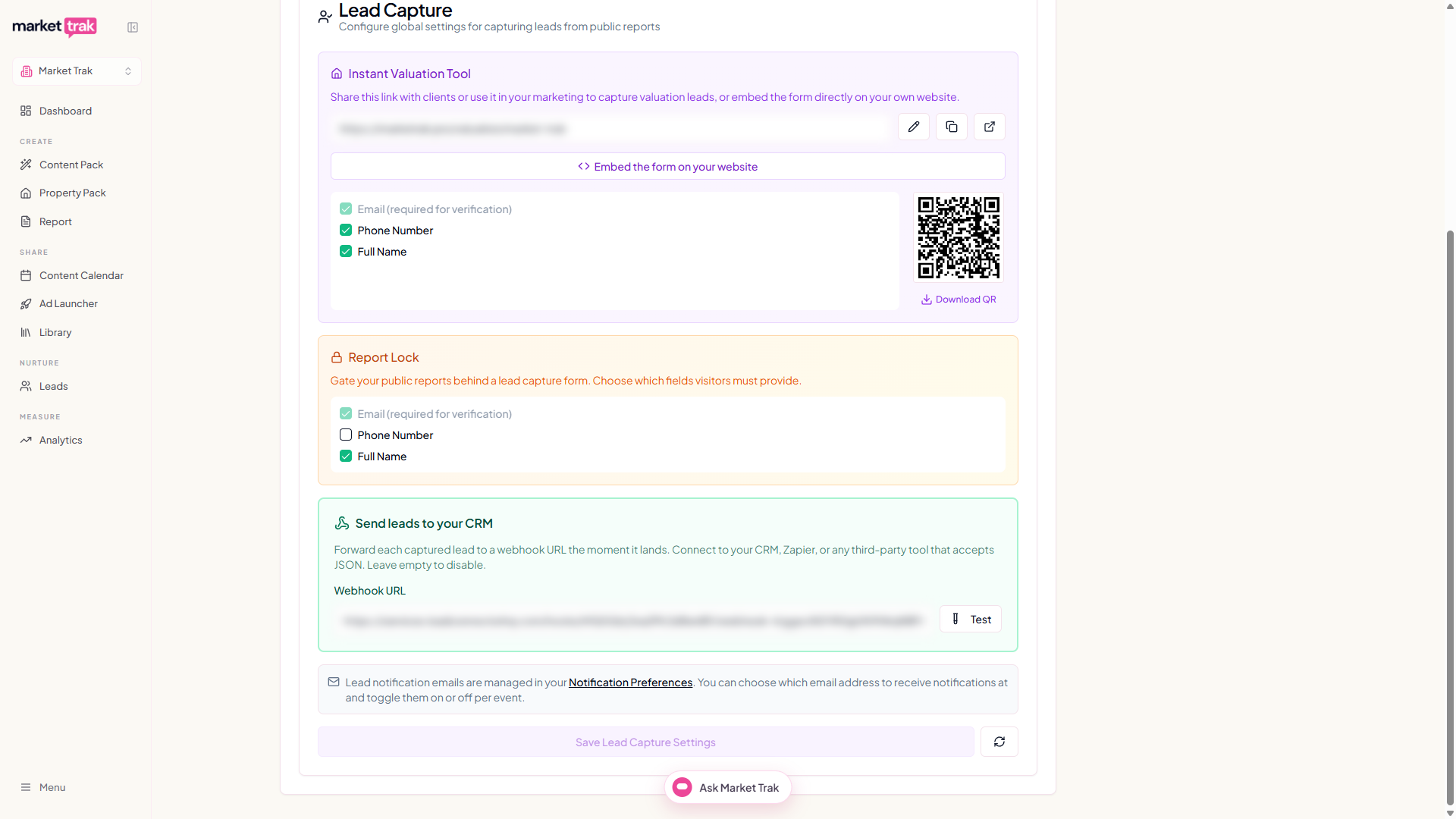
- Go to Workspace Settings (click your profile icon in the sidebar)
- Scroll to the Lead Capture section
- Paste your webhook URL into the Webhooks field
- Save your settings
That is it. Every new lead will now be sent to that URL automatically.
Using webhooks with Zapier
Zapier is the most common way to connect Market Trak leads to other tools without any coding. Here is the general idea:
- Create a new Zap in Zapier
- Choose Webhooks by Zapier as the trigger
- Select Catch Hook as the trigger event
- Zapier gives you a unique webhook URL - copy it
- Paste that URL into Market Trak's webhook field (see above)
- Test by capturing a lead in Market Trak (view a locked report or submit a valuation)
- Zapier will catch the data. You can then set up an action - for example, adding the lead to a Google Sheet, creating a contact in HubSpot, or sending a notification to Slack
Zapier supports thousands of apps, so you can route your leads almost anywhere.
Using webhooks with a CRM
If your CRM accepts incoming webhook URLs (many do), you can paste that URL directly into Market Trak's webhook field. This sends new leads straight into your CRM without needing Zapier as a middleman.
Check your CRM's documentation for how to set up an incoming webhook or API endpoint.
Market Trak also has direct integrations with Loop CRM and Street CRM. If you use either of those, the CRM integration is a better option than webhooks.
Troubleshooting
If leads are not appearing in your connected tool:
- Check the URL - make sure you copied the full webhook URL with no extra spaces
- Test with a real lead - submit a test valuation or view a locked report to trigger the webhook
- Check the receiving tool - make sure your Zap is turned on, or that your CRM endpoint is active and accepting data
- Try again - if you changed the URL, save your workspace settings and capture a new lead to test
Attribution data in webhooks
When a lead arrives from a link with UTM parameters (for example, a Google Ads click), Market Trak captures the traffic source and includes it in the webhook payload. This lets your CRM see exactly where each lead came from.
The following fields are included inside data.lead on every webhook:
| Field | Example | Description |
|---|---|---|
traffic_source | Paid Google | Human-readable source category |
utm_source | google | UTM source parameter |
utm_medium | cpc | UTM medium parameter |
utm_campaign | spring_sellers | UTM campaign name |
utm_term | property valuation london | UTM keyword term |
utm_content | ad_variant_a | UTM content variant |
gclid | CjwKCAjw... | Google Ads Click ID |
fbclid | IwAR3... | Facebook Click ID |
msclkid | abc123... | Microsoft Ads Click ID |
referrer | https://www.google.com/ | Page that linked to yours |
landing_url | https://mtrak.me/valuation/your-agency?utm_source=google | Full URL the visitor landed on |
All fields are null when no attribution data is available (for example, a direct visit with no UTM parameters). This makes CRM field mapping predictable because the fields are always present.
Mapping attribution in your CRM
In your CRM workflow (for example, a GoHighLevel inbound webhook or a Zapier action), map the incoming fields to contact custom fields. For Google Ads specifically, mapping gclid to your CRM's native Google Click ID field enables offline conversion tracking, so your CRM can report real business outcomes (like won instructions) back to Google Ads.
Facebook ad enquiries in webhooks
Enquiries from your Property Ad Launcher ads arrive as the same lead.captured event, so any field mapping you already have keeps working. A few details specific to ad enquiries:
data.lead.sourceisfacebook_ad, withtraffic_sourceset toPaid Social. The UTM and click ID fields are present butnull, because the form is filled in on Facebook itself rather than on a web page.data.lead.channeltells you which network the enquiry came from:Facebook adorInstagram ad. A matchingdata.campaign.platformfield carries the same distinction as a simple value (facebookorinstagram), which is easier to filter on in a CRM.- The
data.reportblock describes the advertised property instead of a report: its title readsFacebook Ad - {address},locationis the property address,urlis the public listing link, andproperty_type,bedrooms, andpriceare included where known. - A
data.campaignblock carries the ad's identifiers (including the Facebook campaign, ad, and form IDs, plus theplatformfield above) so you can tie enquiries back to a specific ad. - If the ad's form included qualifying questions, the answers arrive twice for convenience:
data.answersis a flat object with stable keys for filtering (for example"sell_to_buy": "Yes"), anddata.qualifying_questionsis a list with the full question wording for display.
The question keys are the same on every ad, so a CRM filter like "sell_to_buy is Yes" works across all your properties:
| Key | Question |
|---|---|
sell_to_buy | Would you need to sell to buy this property? |
property_to_sell | Do you have a property to sell? |
free_valuation | Would you like a free valuation of your own home? |
move_timeframe | How soon are you looking to move? |
buyer_position | Are you a cash buyer, or will you need a mortgage? |
Tips
- You only need one webhook URL. If you want to send leads to multiple places, use Zapier to split the data into several actions within a single Zap
- Webhooks work alongside all other Market Trak features - your leads still appear in the Leads dashboard as normal
- If you remove the webhook URL from your settings, leads will stop being forwarded but will still be captured in Market Trak