

Custom Email Domains
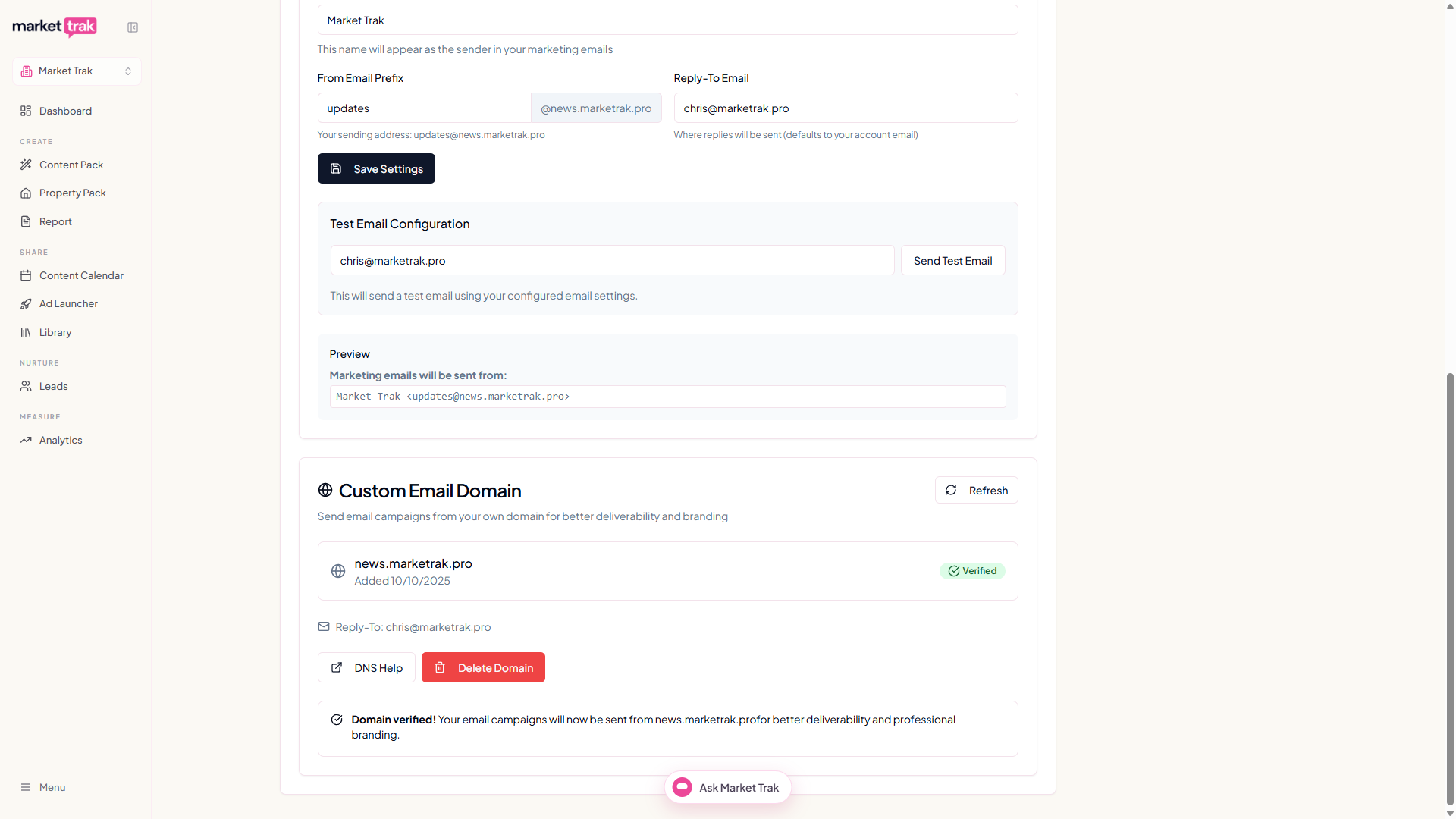
By default, email campaigns are sent from a Market Trak email address. To send from your own domain (e.g. updates@youragency.com), you can connect a custom email domain via Mailgun.
Why use a custom domain?
-
Professional appearance - emails come from your agency domain, not a generic one
-
Better deliverability - properly configured domains improve inbox placement
-
Brand consistency - recipients see your brand in the "From" address
-
Trust - clients are more likely to open emails from a domain they recognise
Setting up a custom domain
Prerequisites
-
A domain you own (e.g.
youragency.com) -
Access to your domain's DNS settings
Steps
-
Go to Workspace Settings
-
Navigate to the Email section
-
Click Add Custom Domain
-
Enter your domain name
-
Market Trak will provide you with DNS records to add:
-
TXT records for SPF and DKIM verification
-
CNAME record for Mailgun tracking
-
-
Add these records in your domain's DNS management panel
-
Wait for DNS propagation (usually a few minutes, sometimes up to 48 hours)
-
Click Verify in Market Trak to confirm the records are in place
Once verified, your campaigns will be sent from your custom domain.
DNS records explained
| Record Type | Purpose |
|---|---|
| SPF (TXT) | Authorises Mailgun to send emails on behalf of your domain |
| DKIM (TXT) | Adds a cryptographic signature to prove emails are genuine |
| Tracking (CNAME) | Enables click and open tracking through your domain |
These records do not affect your existing email or website. They only authorise Mailgun to send on your behalf.
Sending behaviour
After connecting a custom domain:
-
Campaign emails - sent via Mailgun from your domain
-
Welcome emails - sent via Mailgun from your domain
-
System emails (verifications) - continue to be sent from Market Trak's system address
Rate limits
Custom domains via Mailgun support higher sending rates:
- Mailgun: up to 1,000 emails per batch
This means campaigns go out faster with a custom domain.
Troubleshooting
Domain not verifying
-
Double-check DNS records are entered exactly as shown (including the trailing period on some providers)
-
Wait for DNS propagation, it can take up to 48 hours
-
Ensure your domain registrar does not strip or modify TXT records
Emails going to spam
-
Verify your SPF and DKIM records are correctly configured
-
Build sender reputation gradually, start with small campaigns
-
Ensure your email content is not overly promotional or flagged by spam filters
Tips
-
Use a subdomain like
mail.youragency.comorupdates.youragency.comto separate marketing emails from your regular business email -
Check your domain verification status periodically in Workspace Settings
-
A properly configured custom domain significantly improves email deliverability