CRM Integration
Connect CRM to enable property feeds, Facebook & Instagram advertising, CRM queries, and automated posting.
Market Trak integrates with Loop CRM and Street CRM, the two most popular CRM systems for UK estate agents. Connecting your CRM unlocks powerful features like automatic property feed posts, advertising your listings as Facebook and Instagram ads, in-chat CRM queries, and property data access.
Supported CRMs
| CRM | Features |
|---|---|
| Loop CRM | Property search, buyer/seller data, automated property feed, Property Ad Launcher, AI assistant queries |
| Street CRM | Property search, buyer/seller data, automated property feed, Property Ad Launcher, AI assistant queries |
Connecting your CRM
-
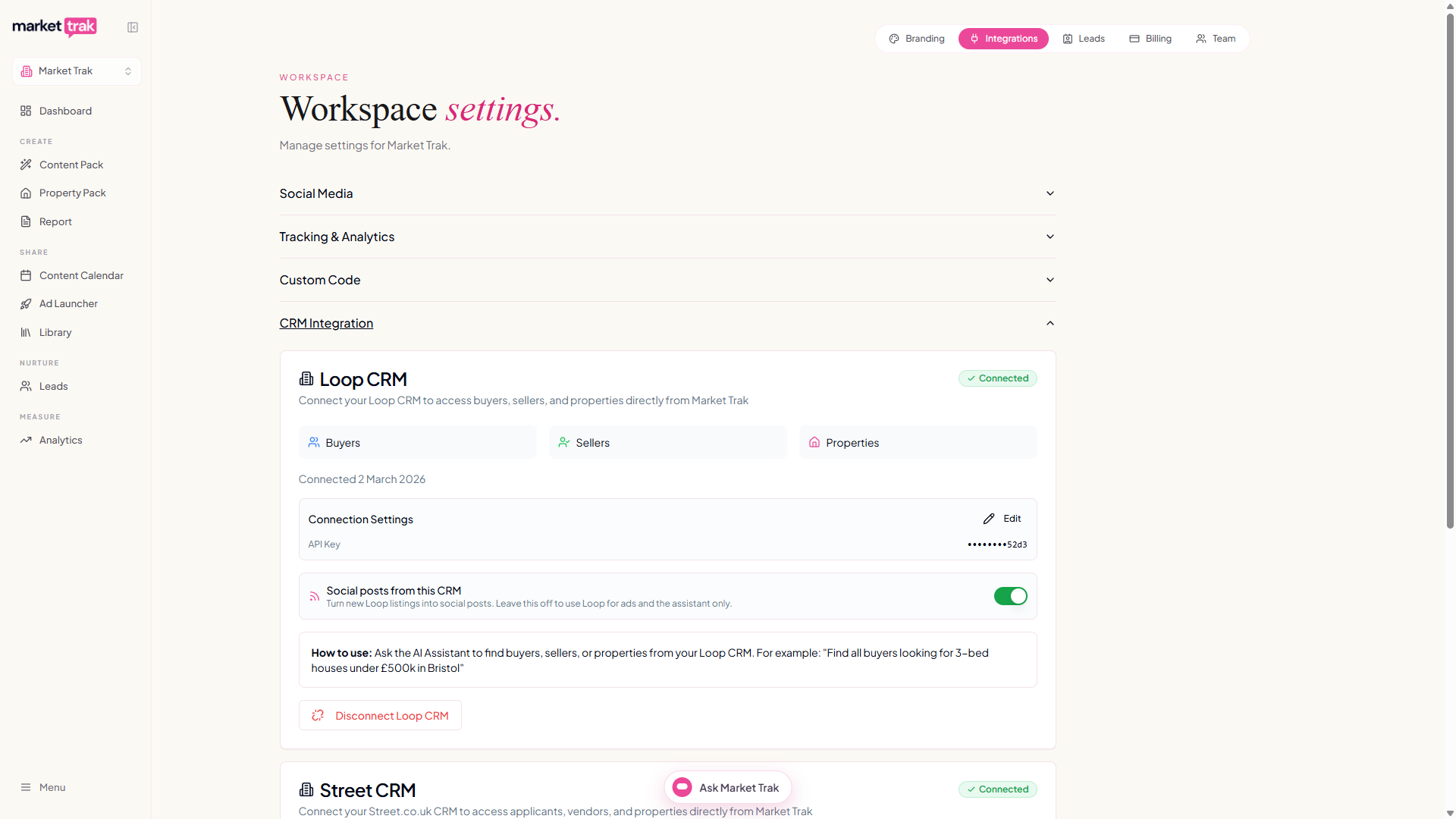
Go to Workspace settings > Integrations (
/workspace-settings?tab=integrations) -
Find your CRM (Loop or Street)
-
Enter your API key (provided by your CRM provider)
-
Click Connect
Your API key is encrypted with AES-GCM encryption and stored securely. It is never exposed in the frontend.
Where to find your API key
-
Loop CRM - contact Loop support or check your Loop account settings for API access
-
Street CRM - available in your Street CRM admin panel under API settings
What you can do with a connected CRM
Property Feed (automated posting)
The Property Feed monitors your CRM for new listings every 2 hours and automatically creates social media posts. This is the most popular reason to connect your CRM.
AI Assistant CRM queries
With a CRM connected, the AI Assistant can search your CRM data directly from chat:
-
"Show me properties for sale in Chorlton"
-
"Find buyers with a budget over £500,000"
-
"What properties have sold recently in CM1?"
-
"Show me landlord contacts"
The assistant also gets CRM-specific slash commands like /forsale, /buyers, /sold, and more.
Property posts from CRM data
When creating social media posts, you can pull property details from your CRM to create accurate, data-rich content about specific listings.
Advertise your listings (Property Ad Launcher)
Your CRM listings also appear in the Property Ad Launcher, so you can turn any property from your CRM into a Facebook and Instagram ad in a couple of taps, with the copy, targeting, and enquiry form set up for you. Sold or withdrawn listings drop off automatically as your CRM syncs, so you only advertise what is still on the market.
Managing your CRM connection
Checking status
The Integrations page shows:
-
Which CRM is connected
-
Whether the API key is valid
-
Connection health
Updating your API key
If your API key changes:
-
Go to Integrations
-
Click the edit button on your CRM connection
-
Enter the new API key
-
Save
The new key is encrypted and stored immediately.
Disconnecting
To disconnect your CRM:
-
Go to Integrations
-
Click Disconnect on your CRM section
-
Confirm
After disconnecting:
-
The Property Feed will stop detecting new listings
-
Your CRM listings will no longer appear in the Property Ad Launcher (ads you have already launched keep running)
-
CRM slash commands will disappear from the AI Assistant
-
Existing posts created from CRM data are unaffected
One CRM at a time
Each workspace connects to one CRM. If you switch from Loop to Street (or vice versa), disconnect the current CRM first, then connect the new one.
Tips
-
Keep your API key secure and do not share it
-
If CRM queries return unexpected results, check that your API key has the correct permissions
-
The Property Feed works best when your CRM data is up to date, make sure listings have accurate addresses and dates