Facebook & Instagram Integration
Connect your Facebook page and Instagram account to publish social media posts directly from Market Trak.
Connect your Facebook business page and Instagram professional account to Market Trak to publish social media posts directly from the app. No more downloading images and copy-pasting captions.
Connecting Facebook & Instagram
-
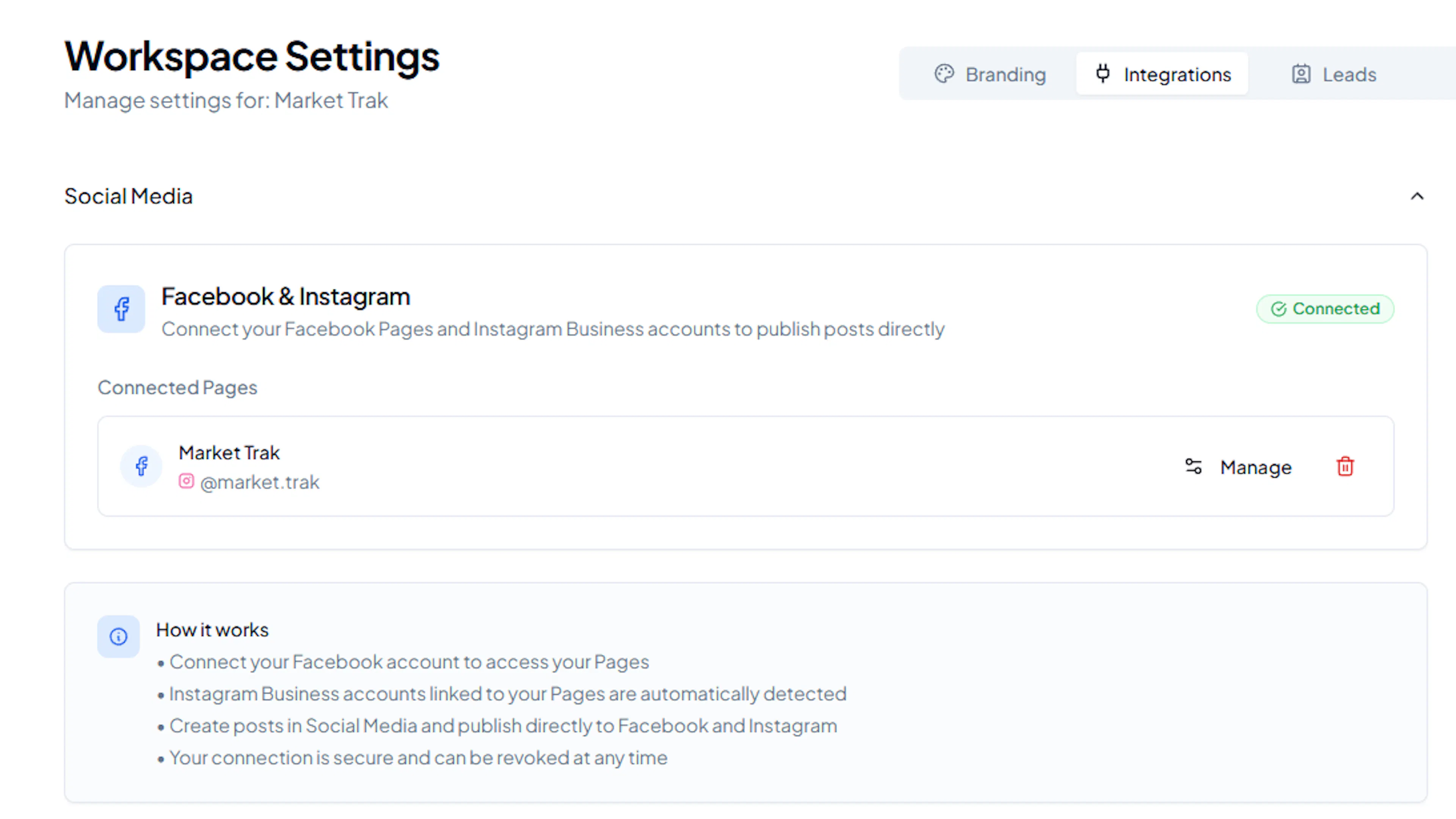
Go to Integrations (navigate to
/integrationsor find it in your workspace settings) -
Find the Facebook & Instagram section
-
Click Connect Facebook
-
You will be redirected to Facebook to authorise Market Trak
-
Select the Facebook Page you want to publish to
-
If your Facebook Page is linked to an Instagram professional account, Instagram will be connected automatically
-
Grant the required permissions
-
You will be redirected back to Market Trak with your page connected
Required permissions
Market Trak needs the following Facebook permissions to publish on your behalf:
-
pages_manage_posts - to create posts on your Facebook page
-
pages_read_engagement - to verify the connection
-
instagram_basic and instagram_content_publish - to publish to your Instagram account (if linked)
These permissions only allow Market Trak to post to your selected page and linked Instagram account. It cannot access your personal Facebook profile, messages, or other pages.
Instagram requirements
To publish to Instagram, your Instagram account must be:
-
A Professional account (Business or Creator), not a personal account
-
Linked to a Facebook Page via Meta Business Suite
If your Instagram account is not linked, only Facebook publishing will be available. You can link your accounts in Meta Business Suite.
Publishing posts
Once connected, you can publish to Facebook and Instagram from:
-
The post composer - click "Publish Now" when creating a post on the calendar and select your target platforms
-
Scheduled posts - posts publish automatically at the scheduled time to your chosen platforms
-
Approval Queue - approve a feed-generated post to publish it
-
AI Assistant - the assistant can publish posts as part of the content creation flow
Managing your connection
Checking status
In the Integrations page, you can see:
-
Which Facebook page is connected
-
Whether an Instagram account is linked
-
Whether the connection is active
-
When the token was last refreshed
Reconnecting
Facebook signs you out periodically for security, so your connection needs reconnecting roughly every two months. Market Trak will let you know in three places:
-
By email. We email the workspace owner as soon as the connection has expired, or is about to within the next week, with a link straight to the reconnect button. If it is still not reconnected a week later you get one more reminder. This is the one that reaches you without you doing anything, so you do not need to be in the app or wait for a post to fail to find out.
-
The Facebook & Instagram section on the Integrations page shows a red "Expired" badge and a banner explaining what's happened. There's a Reconnect button in that banner.
-
The publish modal (the one that pops up when you click Publish Now on any post) shows the same amber banner with a Reconnect Facebook button. You don't have to leave your post and go to settings. Click the button in the modal, re-authorise through Facebook, and you'll come back to the same post ready to publish.
When you reconnect, your connection is refreshed for another ~60 days. The page you previously had connected stays connected; you don't need to re-pick it.
One connection covers both networks. Your Instagram account is published through the Facebook Page it's linked to, so when the Facebook connection expires, Instagram posting stops as well and reconnecting Facebook restores both.
When a post reaches one network but not the other
Because Instagram publishes through your linked Facebook Page, a post can go live on Facebook while Instagram refuses it. The usual reasons are:
-
The post has no image or video. Facebook is happy with text on its own; Instagram is not and will always refuse a text-only post.
-
No Instagram professional account is linked to the Facebook Page you're publishing to.
-
Instagram took too long to process the image or video. Instagram prepares media before it publishes, and occasionally that step fails or times out on their side.
When it happens the post shows in amber on your calendar rather than green, and we email you naming both networks and the reason. Open the post to see which one was missed.
Nothing needs undoing: the network that worked is live and stays live, which is why it's amber rather than red. To cover the one that missed, fix whatever the email names, then create the post again from the composer and select only the network you still need.
You won't see a Retry Publishing button on these. That button is only for posts that failed everywhere, because retrying a partial would post a second time to the network that already worked.
Republishing a post that failed
If a post failed to publish because your connection had expired, it isn't lost. Your saved post stays in your Library, and your scheduled post stays on the calendar marked in red.
Reconnect Facebook first
Use any of the three routes above. Retrying before you reconnect will just fail again.
Open the failed post
Go to your calendar and click the post. Failed posts are shown in red.
Click Retry Publishing
The post preview shows a Retry Publishing button. The post goes out straight away rather than waiting for its original scheduled time, which has already passed.
Disconnecting
To disconnect:
-
Go to Integrations
-
Click Disconnect on the Facebook & Instagram section
-
Confirm the disconnection
After disconnecting, posts will no longer publish to Facebook or Instagram. You can still create posts and download them for manual posting.
GDPR compliance
Market Trak handles Facebook GDPR data deletion requests automatically. If Facebook sends a data deletion callback, your data is processed in compliance with their requirements.
Tips
-
Keep your Facebook connection active to take full advantage of scheduled posts and the Property Feed
-
If posts fail to publish, check your connection status first
-
You can publish to one Facebook page (and its linked Instagram account) per workspace
-
Link your Instagram professional account to your Facebook Page in Meta Business Suite to unlock Instagram publishing