
Embedding the Valuation Form
Add your instant valuation form directly to your own website, with conversions tracked on your own domain and ad accounts.
You can embed the instant valuation form straight onto your own website, so visitors get a valuation without leaving your site. Sharing your valuation link sends people to your Market Trak valuation page; embedding instead drops just the form onto a page you control, styled to your brand. It's built for running ads to your own landing page.
What the embed looks like
The embed shows only the form, nothing else:
- No Market Trak cover, footer, or "Powered by" strip around it.
- A transparent background, so it inherits the background of your page.
- Buttons and selected options use your workspace brand colour.
You provide the headline and marketing around it on your own page; the embed provides the working form.
The embed is available to anyone whose plan includes Instant Valuations. You set the brand colour it uses in Settings > Workspace Settings > Branding.
Getting the embed code
Open your Instant Valuation Tool settings
Go to Settings > Lead Capture and find the Instant Valuation Tool box (the same place you set your valuation link, form fields, and QR code).
Click 'Embed the form on your website'
A window opens with your ready-to-paste embed code and a copy button.
Copy the code
Click the copy button. The code is a small <div> containing an <iframe> (the form) and a short <script> that does the rest.
Paste it onto your website
Drop the snippet anywhere in your site's HTML where you want the form to appear: a page builder's custom HTML block, a WordPress HTML widget, a Squarespace code block, and so on. The form renders immediately.
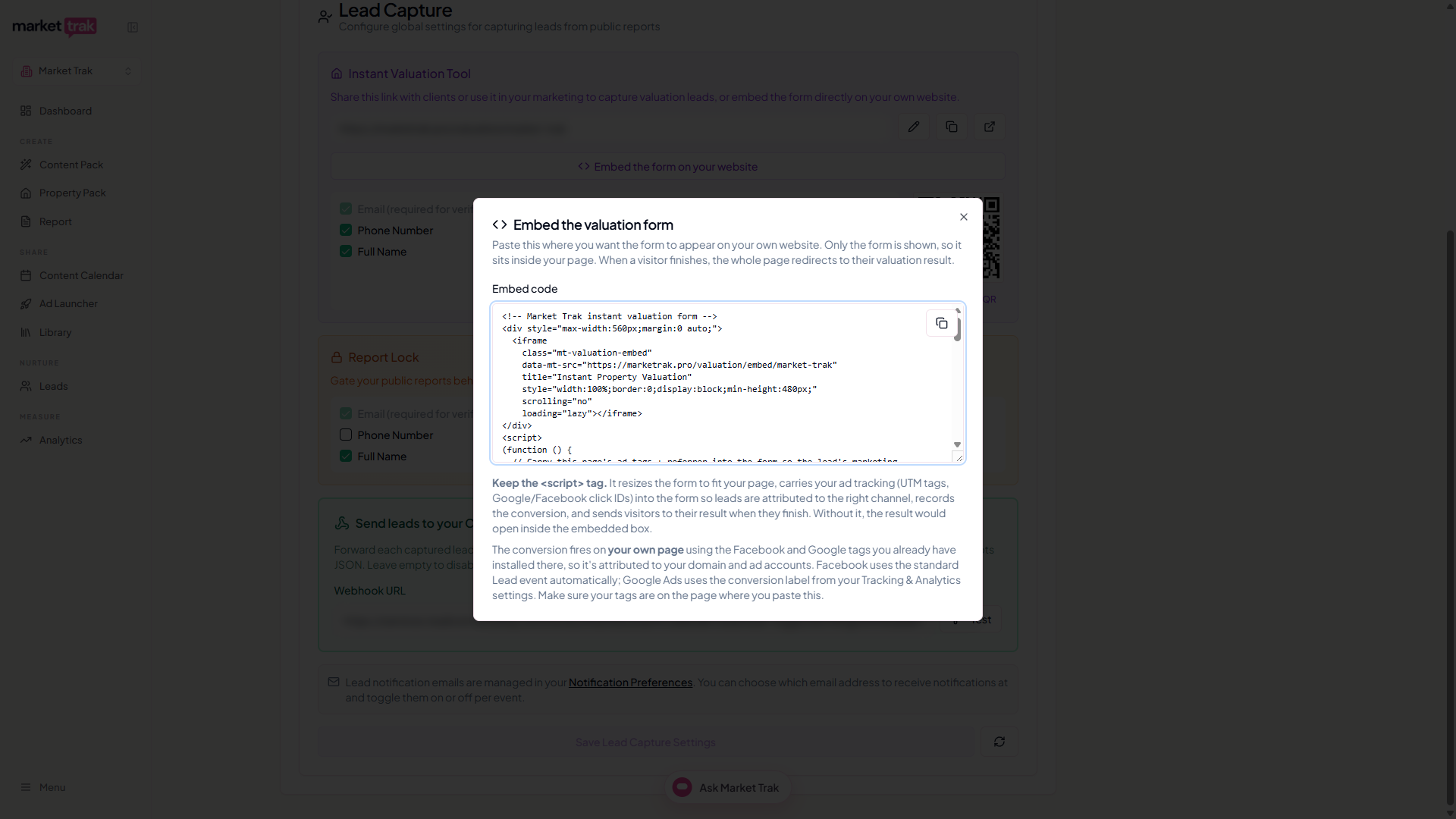
Keep the <script> tag. It resizes the form to fit your page, records the conversion, and sends visitors to their result when they finish. Without it, the result would try to open inside the small embedded box and no conversion would fire.
What your visitor sees
-
They see your form sitting on your page.
-
They enter their property details and contact information.
-
When they submit, the whole page sends them to their valuation result, branded with your logo.
-
Their details are captured as a lead in your Leads dashboard, exactly as they would be from your hosted valuation page.
How conversion tracking works
This is the most important part for ads. The conversion is recorded on your own page, using your own tracking tags, not inside Market Trak. That means it's attributed to your own domain and ad account, which is what Facebook and Google expect and what makes the embed work properly as an ad landing page.
Facebook's conversion is the standard Lead event, and there is no label to set up. Our script fires it automatically using the Facebook Pixel you already have on the page, so the only thing you need is your Pixel installed there.
If you've built a Custom Conversion in Meta Events Manager, base it on the standard Lead event and it will pick this up.
Google Ads needs your conversion ID and label. You set these once in Settings > Tracking & Analytics (the Google Ads fields). The embed reads them and fires your Google Ads conversion on your page automatically, so you never enter them again. Your Google tag must be on the page for it to fire.
If you change the label in your settings later, the embed picks up the new one automatically; there's no need to re-copy the code.
Already running ads to this page? Then your Facebook Pixel and Google tag are already on it, and there's nothing else to set up.
If your tags aren't on the page
The conversion simply won't fire, but you don't lose anything: the lead is still captured in your Leads dashboard, and your welcome emails and webhooks still run as normal. You just won't see the conversion reported back in Facebook or Google until your tags are in place.
Why conversions fire on your page, not in the form
The embedded form deliberately loads no tracking of its own. If it fired the conversion from inside the embedded box, the event would be tied to Market Trak's domain rather than yours, which weakens attribution and can be ignored by Facebook's iOS measurement. Firing on your own page, with your own tags, keeps everything tied to your verified domain and your ad account.
Troubleshooting
Tips
-
For the best ad results, build a focused landing page (a clear headline, a few benefits, and the form) rather than dropping the form onto a busy page.
-
Set your brand colour in Workspace Settings so the form's button matches your site.
-
Leads flow into your dashboard even before your tracking tags are set up, so you're covered from day one and can add tags whenever you're ready.
-
See Instant Valuations for how the valuation itself works, and Tracking & Analytics for setting up your pixels and tags.