

Workspace Settings
Configure your workspace branding, team members, email settings, and integrations.
Workspace settings control everything shared across your team: branding, email configuration, team members, and more.
Accessing workspace settings
Click your profile icon in the sidebar, then select Workspace settings. Workspace settings are for the workspace owner (and your Market Trak administrator). Invited team members have their own User settings for their name and password, but they don't see workspace billing or configuration.
Branding
Customise how your workspace looks across reports, emails, and public pages.
Logos
Upload three logo variants:
- Dark logo - shown on light backgrounds (reports, emails)
- Light logo - shown on dark backgrounds (sidebar in dark mode)
- Favicon - small square icon for browser tabs and the collapsed sidebar
Brand colour
Set your primary brand colour using a hex code or the colour picker. This colour is used on:
- Report call-to-action buttons
- Email buttons
- Accent elements throughout the app
Brand voice
Would you like the AI to talk in the first person or as a team? Pick First person and everything written for you says "I" and "my"; pick As a team and it says "we" and "our". It applies everywhere: your Content Pack, your Swipes, your property posts and the assistant. We set this from your website when you join, so most people never need to touch it, but if your posts are saying "we" when it is just you, this is the switch.
Short, true facts about your agency ("Family-run", "Covering Didsbury and Chorlton") that Market Trak weaves into your Content Pack posts, one mention in each batch of three posts, so your feed sounds like you. If you pasted your website when you signed up, these are filled in from your site automatically. They appear as small tags: remove any with the X, or type your own and press Add (up to 8, and keep them short).
If the section is empty, a Scan my website button appears. Press it and Market Trak reads your website and fills in your facts and social profiles for you. Your Business website needs to be saved first so we know where to look.
Your Instagram and Facebook profiles live here too, shown as labelled tags in each network's colours. Remove one with its X and a field appears in its place; paste a profile link or just type the handle and press Save to turn it back into a tag.
Business website
Your main agency website. If you pasted your website when you first signed up, it's saved here automatically. It's shown as a small tag: remove it with the X and a field appears to enter a new one. Type your address however you like: myagency.co.uk works just as well as the full https://myagency.co.uk, and Market Trak fills in the rest. This is your general business link, kept separate from your Calendar Booking Link (your valuation booking or calendar URL), so the two never overwrite each other.
Cookie consent
Toggle whether your public report pages show a cookie consent banner for GDPR compliance. This setting is also available in Tracking & Analytics.
Team members
Bring colleagues into your workspace so you all work from the same reports, posts, leads, and branding. Everyone shares one subscription and one set of usage allowances, on one bill.
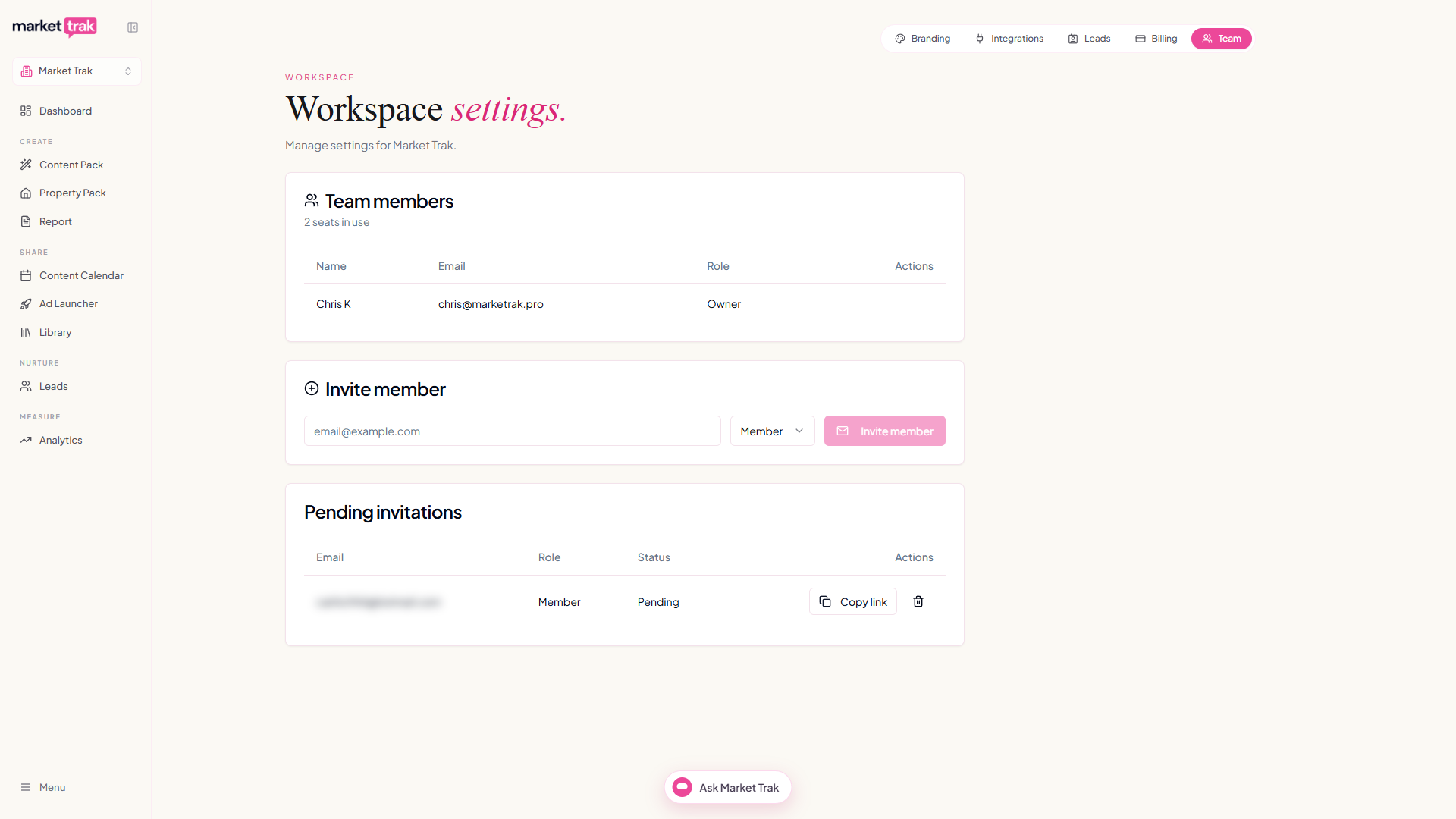
Team members are part of plans that include them. The Team members section shows your seat allowance, for example "2 of 5 seats used" (the owner counts as one seat). If you don't see the section, your current plan doesn't include extra seats.
Inviting a member
Open Team members
In Workspace settings, scroll to the Team members section.
Enter their email
Type your colleague's email address and click Invite member. We email them a branded link to accept and join your workspace.
They accept
The invite sits under Pending invitations until they accept. Want to send it another way? Click Copy link next to the pending invite and share it yourself.
When all your seats are in use, the invite button is disabled until you remove a member or move to a plan with more seats.
Owners and members
There are two levels of access:
- Owner - you set up the workspace. You manage billing, branding, team members, integrations, and everything in Workspace settings.
- Member - an invited colleague. They create and work with reports, posts, leads, and the AI assistant using your shared branding and allowances. They have their own User settings (name, password), but they don't see Workspace settings or billing.
Removing a member
In the Team members section, click the remove option next to a person's name to revoke their access. Their seat frees up straight away.
Running multiple offices
If your plan includes multiple offices, you can run more than one office (a branch or a different area) from a single login. Each office is fully separate: its own subscription, branding, leads, and data, billed separately.
Switching between offices
When you have more than one office, an office switcher appears at the top of your sidebar, under the logo. Click it to see your offices and switch between them. The app reloads into the office you pick, so your reports, leads, and branding all match that office.
Adding an office
Open the office switcher
Click the office switcher in the sidebar, then choose Add office. You'll only see this if your plan includes multiple offices and you're the owner.
Name it and pick a plan
Give the new office a name and choose its plan, then complete checkout. A new office starts on a paid plan straight away, there's no free trial on an additional office.
You're in
We copy your current branding across so the new office is ready to go, then drop you straight into it. Fine-tune its branding and settings from there.
Adding an office creates a separate subscription. To bring colleagues into an office instead, sharing one bill, use Team members above.
Email settings
Configure your email sending preferences:
- Sender name - the name that appears in the "From" field of campaign emails
- Reply-to address - where lead replies are directed
- Welcome email - toggle automatic welcome emails for new leads
For custom sending domains, see Email Domains.
Lead capture settings
Configure how leads are captured from your public reports:
- Lead gate - require visitors to enter their details before viewing full report content
- Fields - choose which fields to collect (name, email, phone, etc.)
- Webhooks - forward captured leads to external systems via webhook URL
Tracking & Analytics
Add tracking pixels to monitor visitor behaviour on your public reports. You can configure:
- Facebook Pixel - retarget report viewers with Meta ads
- Google Analytics (GA4) - track report views and traffic sources
- Google Tag Manager - load additional tracking scripts
- Cookie consent - GDPR-compliant consent banner for report visitors
For full setup instructions and where to find your tracking IDs, see Tracking & Analytics.
Integrations
Quick links to your connected services:
These can also be managed from the dedicated Integrations page at /integrations.
Billing
For subscription and credit management, see Billing.