User Settings
Manage your personal profile, notification preferences, and AI assistant settings.
User settings control your personal profile and preferences. These are specific to your account, not your workspace, so team members each have their own settings.
Accessing user settings
Click your profile icon in the sidebar, then select User settings. Or navigate directly to /user-settings.
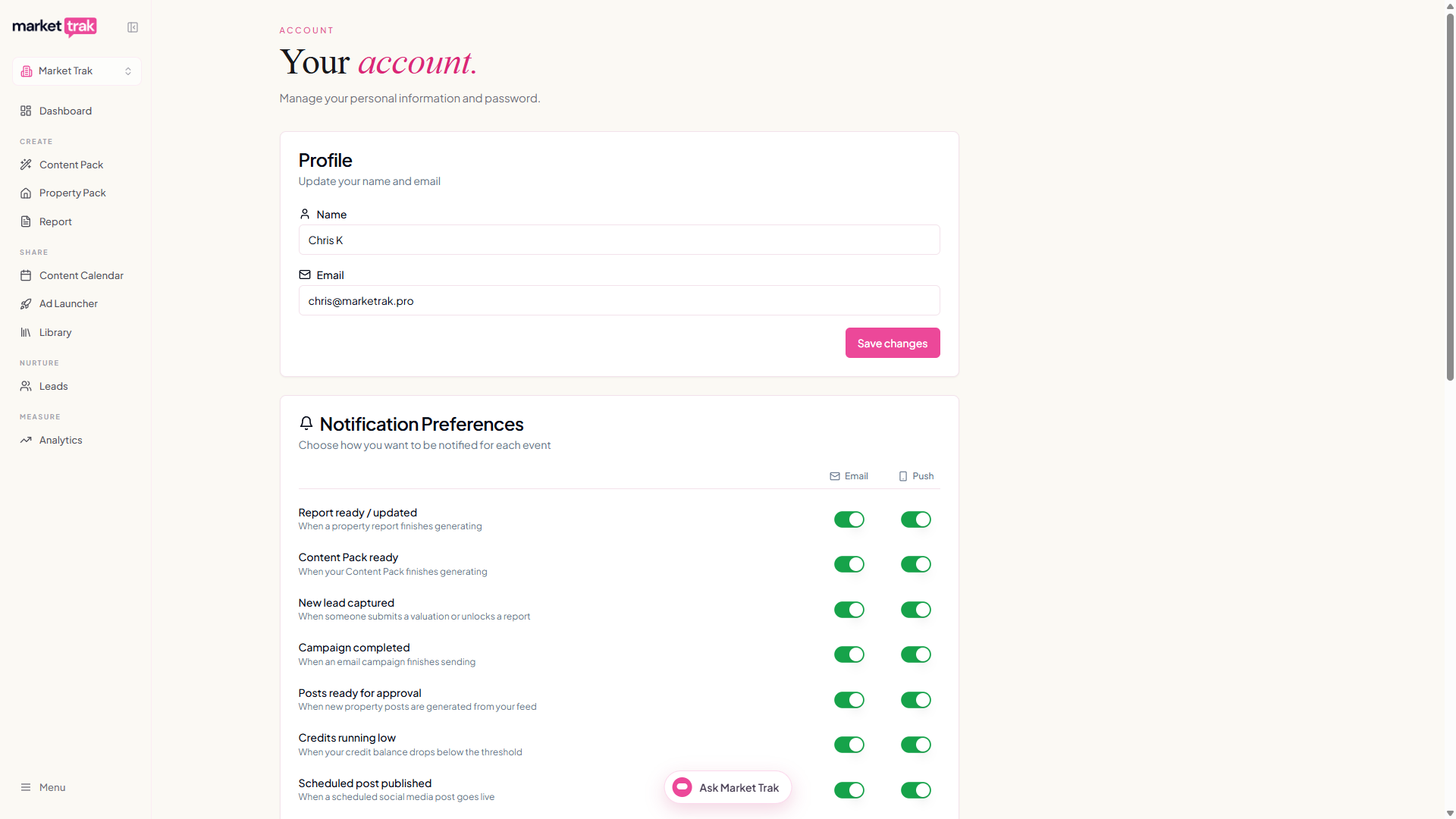
Profile
Update your personal information:
-
Contact name - your display name shown in the sidebar and to team members
-
Email address - your login email (changing this requires verification)
-
Notification email - optionally set a different email for notifications (if you want alerts sent somewhere other than your login email)
Notification preferences
Control which notifications you receive and how:
| Event | Push | |
|---|---|---|
| Report ready | When a report finishes generating | Browser push notification |
| Content Pack ready | When your Content Pack finishes generating | Browser push notification |
| New lead | When a new lead is captured | Browser push notification |
| Campaign sent | When an email campaign completes | Browser push notification |
| Posts ready | When property feed posts are ready for approval | Browser push notification |
| Credits low | When your credit balance is running low | Browser push notification |
| Post published | When a scheduled post is published | Browser push notification |
Toggle each notification on or off per channel. You can enable email notifications, push notifications, or both. Turning off Content Pack ready email stops the "Your Content Pack is ready" delivery email landing in your inbox when a pack finishes generating; turning off the push toggle stops the matching browser push notification. The two channels are independent, so you can keep one and silence the other.
Push notifications
To receive browser push notifications:
-
Click Enable Push Notifications in your notification settings
-
Your browser will ask for permission to show notifications
-
Once enabled, you will receive real-time alerts even when the Market Trak tab is not active
Push notifications work in Chrome, Firefox, Edge, and Safari.
AI Assistant settings
-
Custom instructions - write permanent instructions for your AI assistant (see Memory and Instructions)
-
Memory toggle - enable or disable the auto-learning memory feature