Tracking & Analytics
Add Facebook Pixel, Google Analytics, Google Tag Manager, and Google Ads conversion tracking to your public reports for retargeting and visitor insights.
Market Trak lets you add tracking pixels to all your public report pages. When someone views one of your reports, these pixels fire and send data to your advertising and analytics platforms, enabling retargeting, conversion tracking, and visitor insights.
Tracking is a premium feature available on higher-tier plans.
What you can track
| Pixel | What it does |
|---|---|
| Facebook Pixel | Track report views as events in Meta Ads Manager. Build retargeting audiences of people who viewed your reports and measure ad conversions |
| Google Analytics (GA4) | See how many people view your reports, where they come from, and how they interact with your pages |
| Google Tag Manager | A container that can load any combination of tracking scripts. Useful if you use multiple analytics or advertising tools |
| Google Ads | Track lead conversions from your Google Ads campaigns. Feeds data back into Google Ads so it can optimise your bidding and report cost-per-lead |
You only need to add the ones you use. Most agents start with Facebook Pixel and Google Analytics. If you are running Google Ads campaigns, adding your Conversion ID and Label lets Google Ads count actual leads (not just clicks) so it can optimise your spend.
Setting up tracking
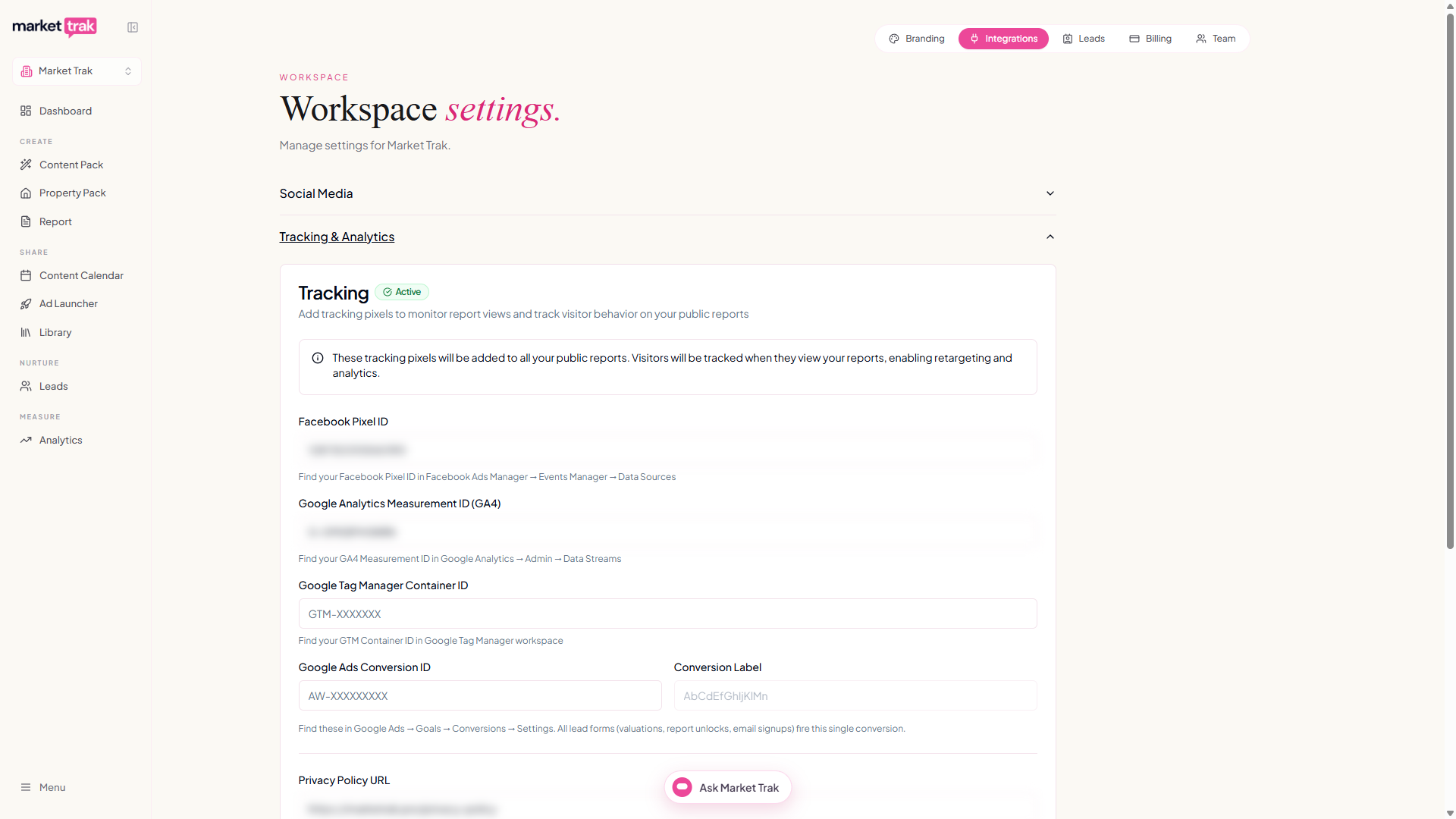
- Go to Workspace Settings and expand the Tracking & Analytics section
- Enter your tracking IDs (see below for where to find them)
- Click Update Tracking Pixels
Once saved, the pixels are automatically added to every public report your workspace generates.
Where to find your tracking IDs
Facebook Pixel ID
Your Pixel ID is a 15-16 digit number.
- Go to Meta Events Manager
- Click Data Sources in the left sidebar
- Select your Pixel (or create one if you have not set one up yet)
- Your Pixel ID is displayed at the top of the page
If you do not have a Facebook Pixel yet, click Connect Data Sources, choose Web, and follow the setup wizard. You do not need to install any code on your website; Market Trak handles the installation on your reports automatically.
Google Analytics Measurement ID (GA4)
Your Measurement ID looks like G-XXXXXXXXXX.
- Go to Google Analytics
- Click the Admin cog in the bottom left
- Under your property, click Data Streams
- Click on your web stream (or create one)
- Your Measurement ID is shown at the top right
If you do not have a Google Analytics account, you can create one free at analytics.google.com. Create a new property for your agency and set up a web data stream.
Google Tag Manager Container ID
Your Container ID looks like GTM-XXXXXXX.
- Go to Google Tag Manager
- Your Container ID is shown in the top row of your workspace list
- Or click into your container and find it at the top of the page
Google Tag Manager is optional and only needed if you use multiple tracking tools or want advanced tag configurations. If you only need Facebook Pixel and Google Analytics, you can add those directly without GTM.
Google Ads Conversion ID and Label
Your Conversion ID looks like AW-XXXXXXXXX and your Conversion Label is a short string of letters and numbers.
- Go to Google Ads
- Click Goals in the left sidebar, then Conversions and Summary
- Click the conversion action you want to track (or create a new one, choosing "Website" and "Submit lead form" as the category)
- Click Tag setup, then Use Google Tag Manager
- Your Conversion ID and Conversion Label are displayed on this screen
Enter both values in the Tracking & Analytics section of your Workspace Settings. The Conversion ID goes in the first field and the Conversion Label goes in the second field next to it.
All three lead capture points (instant valuations, locked report unlocks, and email signup forms) fire the same single conversion event, so you only need one conversion action in Google Ads.
Privacy Policy URL
Add a link to your agency's privacy policy here. The same URL is used in two places:
- On the cookie consent banner that appears on your public reports
- On the lead capture forms (report unlock, instant valuation, embed signup, email signup) so visitors can read your policy before submitting their details
If you leave this empty, a generic consent message is shown on the cookie banner and the privacy line is hidden on lead forms. Setting it once here covers everything; you no longer need to set it anywhere else.
Cookie consent (GDPR)
When you have tracking pixels enabled, Market Trak automatically shows a cookie consent banner on your public reports. Visitors must accept cookies before any tracking scripts are loaded.
You can configure this in the Tracking & Analytics section:
- Show Cookie Consent Banner - toggle on or off (on by default when tracking is active)
Keeping the cookie consent banner enabled is recommended for GDPR compliance, especially if your reports are viewed by visitors in the UK or EU.
How it works
When a visitor opens one of your public reports:
- The cookie consent banner appears (if enabled)
- If the visitor accepts, your tracking pixels are loaded
- Each pixel fires a page view event to its respective platform
- You can then see this data in Meta Ads Manager, Google Analytics, or Google Tag Manager
When a visitor submits a lead form (instant valuation, report unlock, or email signup), conversion events fire to all your connected platforms: Facebook Pixel, Google Analytics, Google Tag Manager, and Google Ads.
This means you can:
- Retarget report viewers with Facebook or Instagram ads
- Track which reports get the most views in Google Analytics
- Measure actual lead conversions in Google Ads and see your true cost-per-lead, not just cost-per-click
Custom Code
For anything that doesn't fit the standard pixel fields above, the Custom Code section (just below Tracking & Analytics in Workspace Settings) lets you inject raw HTML or JavaScript into your public reports.
- Header Code is injected at the top of the
<head>section, so it runs before page content loads. Use this for scripts that need to initialise early. - Footer Code is injected just before the closing
</body>tag. Use this for scripts that should run after the page has rendered.
Both fields apply to all your public reports and valuation pages automatically.
When to use custom code
Custom code is useful when you need to add a tool that Market Trak does not have a built-in field for. Common examples:
- ConvertBox, OptinMonster, or similar pop-up tools
- Hotjar, Microsoft Clarity, or other heatmap and session-recording tools
- Live chat widgets like Intercom, Crisp, or Tawk.to
- Custom tracking pixels from platforms other than Facebook, Google Analytics, or Google Tag Manager
- Small CSS overrides to tweak the appearance of your reports
Important notes
- Only paste code from sources you trust. Custom code runs with full access to the report page.
- If a script breaks the page, remove it and click Save Changes again.
- For standard tracking (Facebook Pixel, GA4, Google Tag Manager, Google Ads), prefer the dedicated fields in the Tracking & Analytics section. They are easier to configure and harder to break.
Tips
- You only need to set up tracking once; it applies to all reports automatically
- If you are running Facebook ads, the Pixel is the most valuable tracking tool to add
- If you are running Google Ads, add your Conversion ID and Label so Google can optimise your bidding based on real leads, not just page views
- Google Analytics is useful for understanding traffic patterns even without paid advertising
- Test your setup by viewing one of your own reports and checking Events Manager or Google Analytics for the page view