

Creating Social Media Posts
Create professional property marketing posts with AI-generated images and captions, right from your content calendar.
Market Trak helps you create scroll-stopping social media content for Facebook and Instagram, complete with AI-generated images and ready-to-publish captions.
Ways to create a post
-
Content Calendar - the main way to create a post. Click any day and the post composer opens (see Creating from the calendar).
-
AI Assistant - ask the assistant to create a post for you in chat.
-
Property Feed - posts are generated automatically from new CRM or website listings, ready for your approval (see Property Feed).
Creating from the calendar
-
Click Content Calendar in the sidebar.
-
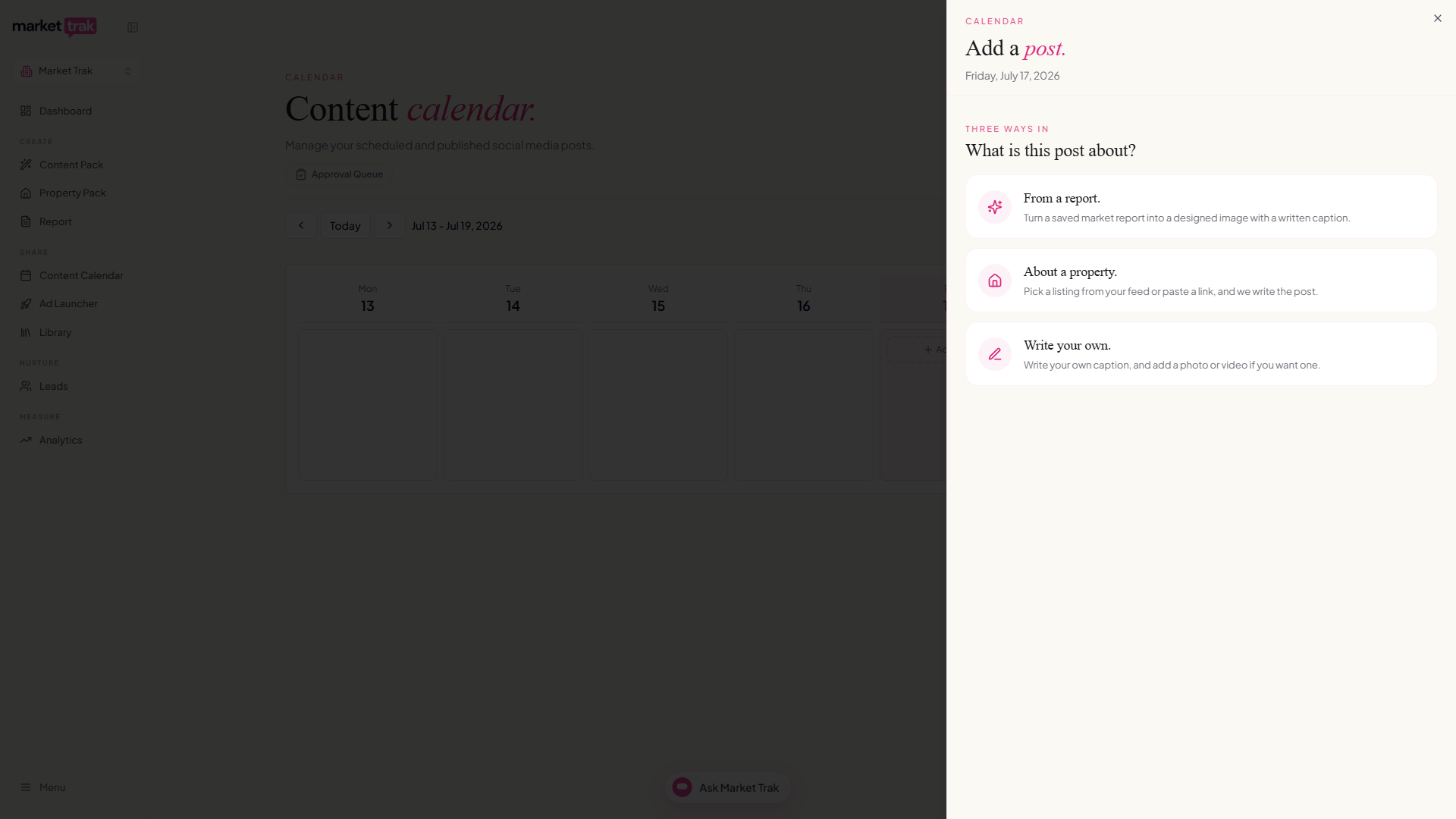
Click the Add Post button on any day (today or future dates only).
-
The post composer opens with three ways to start:
-
From a report - pick one of your saved reports and an image style. Market Trak writes the caption from that report's real market data (average prices, trends, demand) in three styles: conversational, insight-led, and short and punchy. The image and the caption are made at the same time and arrive together, and you can switch between the three styles or edit any of them before saving.
-
About a property - pick one of your properties (from your connected CRM or website feed) or paste a listing link, then choose between ready-written caption styles (conversational, insight-led, or short and punchy). The post uses the property's photo.
-
Write your own - start from a blank caption, and upload a photo or video if you want media with it. Pick more than one photo and they publish together as a carousel; see below.
-
-
Every route ends on the same step: choose your platforms, then Save to Library, Schedule for Later to pick a date and time, or Publish Now. Facebook is ticked for you, and Instagram as well when your Page has an Instagram account linked; untick either one to leave it out.
Not happy with a generated image or caption? Go back a step and pick a different report, image style, property, or caption style; each route generates fresh content.
The calendar also lets you click on any existing post to preview it. From the preview panel, you can edit the caption, change media, update platforms, reschedule, or delete the post, all without leaving the calendar view.
Post several photos as a carousel
Several photos can go out as a single post people swipe through: a carousel on Instagram, and a multi-photo post on Facebook. You can build one from your own photos, or from a property's.
From your own photos
-
In Write your own, click to add media and select several photos together (hold Ctrl, or Cmd on a Mac, to pick more than one).
-
They appear as a numbered grid under the preview. Drag any photo to change its position. The first one is your cover, the picture people see in the feed before they swipe.
-
Add more with the Add tile, or remove one with the small cross in its corner.
-
Tap or click a photo to see it full size in the preview above. Swipe the preview to move through the set on a phone, or use the arrows on a computer. Replace and Edit image act on whichever photo you are looking at, so you can fix just one slide.
-
Save, schedule or publish exactly as you would any other post.
From a property's photos
Choose About a property and pick a listing. Its photos load into a strip under the preview, so you can show a home properly instead of with one outside shot.
-
Tap or click any photo in the strip to add it to your post. Tap it again to take it out. Chosen photos are marked In.
-
They drop into the grid below, where you drag them into whatever order you want. The first is your cover.
-
Scroll the strip, or use the arrows at its sides, to see the rest. Every photo the listing has is in there.
-
Add your own photos on top with the Add tile, for a shot the listing does not include.
-
Write your caption yourself, or press Write the caption for me to have one written from the listing details. Then save, schedule or publish.
If the listing has no photos we can read, you still get its main photo and can add your own, so the post always works.
A post can carry up to ten photos, which is Instagram's limit. Instagram crops every photo in a carousel to match the shape of the first one, so the preview shows them that way too. Choose your cover with that in mind: a portrait cover makes the whole set portrait.
Post preview
As you build a post, the composer shows a live mockup of exactly how it will look in a Facebook or Instagram feed: your image, caption, and branding together, so there are no surprises before you publish.
Caption templates and variables
Posts you create from a report come with a written caption already, so you only need templates if you want a fixed wording of your own.
-
Go to the Templates tab at
/social-media/templates -
Browse or create templates with pre-written captions and variable placeholders
-
When you create a post from a report, your templates appear in the Caption Style list underneath the three written styles. Pick one and it replaces the caption.
Templates can use variables that auto-fill from your report data:
| Variable | What it inserts |
|---|---|
{{location}} | The property or report location |
{{averagePrice}} | Formatted average price (e.g. £456,789) |
{{priceChange}} | Price trend with sign (e.g. +5%) |
{{marketTrend}} | Rising, Falling, or Stable |
{{demandRating}} | High, Medium, or Low |
Working with the image
When you create From a report, choose the image style from the gallery and the aspect ratio (square, landscape, or portrait) before you generate. The image is tailored to your post's market data and can include property-data overlays.
Want a different image? Go back and pick another style; each style generates a fresh graphic. There is no separate "regenerate" button, choosing a style is how you get a new look.
Edit Image
Every generated or uploaded image can be refined with the same editor. It lets you paint over specific areas of an image (highlighted in magenta), then either erase or edit just those areas:
-
Click the Edit Image button on your image
-
Use the brush to paint over the area you want to change. The brush cursor shows the exact size of your selection
-
Choose what to do with the highlighted area:
-
Erase - removes the content and fills with a clean background
-
Type a prompt - describe what you want to change (e.g. "make the sky a sunset", "change the text to say March 2026") and press Send
-
-
The rest of the image stays untouched
Quick edits (one-tap looks)
Inside the Edit Image tool, the Quick edits menu gives you ready-made looks that apply to the whole image in a single tap, with no brushing or typing. They're organised into two folders:
-
Effects - sky and lighting looks (night time, twilight, golden hour, sunny day, overcast, add blue sky), plus an architectural sketch and a cinematic mood.
-
Virtual staging - furnish an empty room in one of eight interior styles (Modern Minimalist, Scandinavian, Luxury Modern, Industrial, Contemporary, Traditional, Japandi, Urban Chic), or tidy a photo with Remove clutter and Remove cars.
Open a folder, pick a look, and it's applied to the whole photo. These are the same looks you'll find as slash commands in the AI Assistant (see Slash Commands).
Quick edits apply to the whole photo. To change just one spot, paint over it with the brush and type what you want instead.
Undo an image change
An edit not gone the way you hoped? A circular undo arrow appears in the top right corner of the image as soon as there is something to go back to. Tap it and your previous image comes straight back, instantly. It does not use any credits.
Tap it again to step back further, one change at a time, all the way to the image you started with. It works for photos you have swapped in with Replace as well as ones you have edited.
Undo lasts as long as you stay on the page. If you refresh, or close the calendar's post panel and come back later, the arrow is gone and the change is final. If an edit has not worked, undo it before you move on.
Everything in the Edit Image tool works wherever images appear: the post composer, the Approval Queue, your Content Pack, the Property Ad Launcher, the AI Assistant chat, email drafts, and saved posts.
Saved posts (your Library)
Posts you explicitly save are kept in your Library, on the Posts tab (this used to be the Drafts tab here in Social Posts). You can revisit, edit, schedule, or publish any saved post. When editing, click the pencil icon to enter edit mode; you can change the image entirely or use the Edit Image tool for targeted changes. The same editing tools are available on scheduled posts in the calendar.
When you publish or schedule a saved post, it leaves the Library and appears on the calendar instead. Posts are not auto-saved; use Save on a post, or the small bookmark on a Content Pack or Property Pack post, to keep it for later with no date attached.