

Importing Leads
Bulk import leads from a CSV file with field mapping and duplicate detection.
If you have existing leads in a spreadsheet, you can import them into Market Trak in bulk. The import accepts CSV and Excel (.xlsx or .xls) files.
\
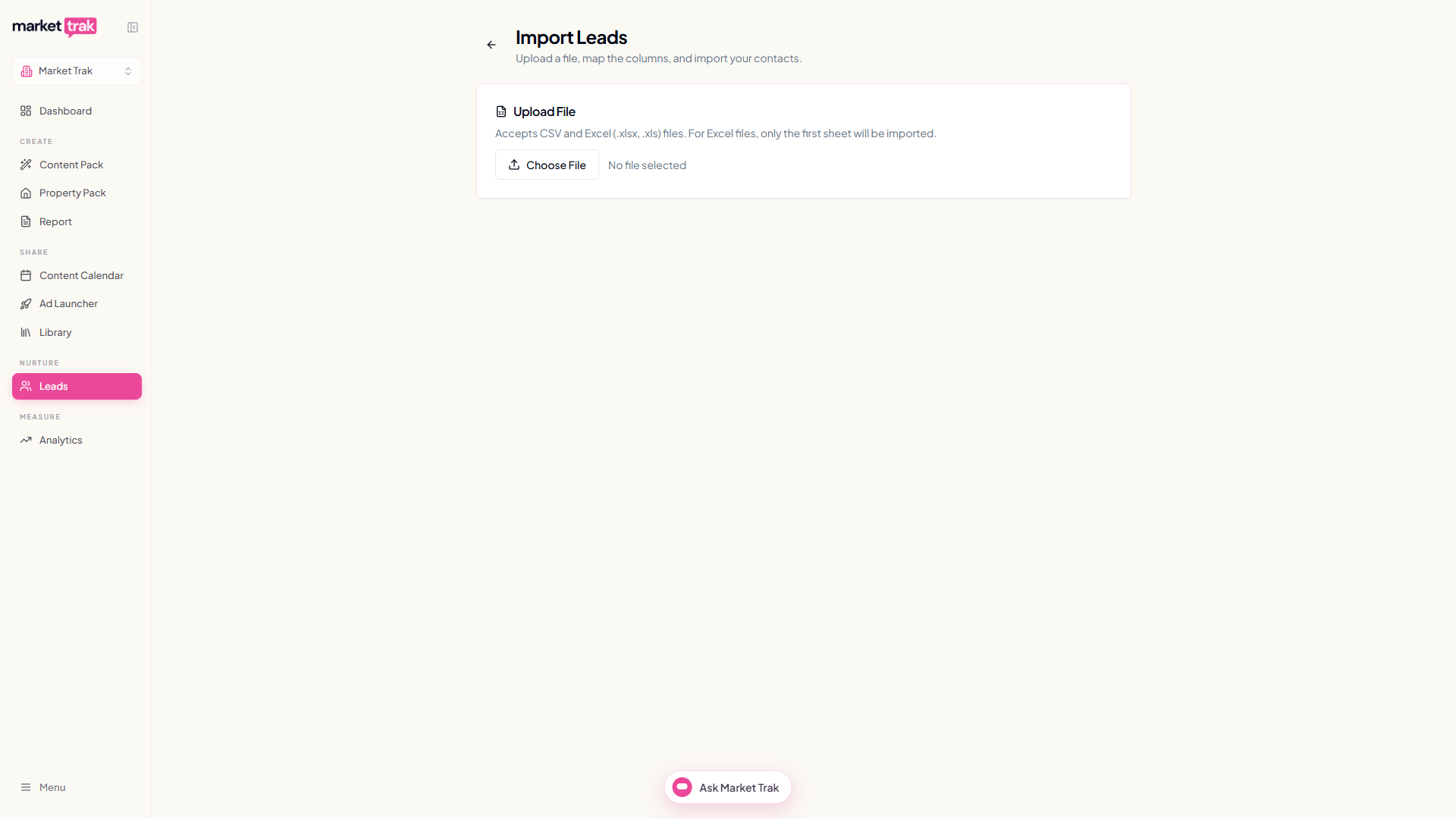
How to import
-
Go to Leads in the sidebar
-
Click Import, which opens the import page
-
Select your CSV or Excel file
-
Map your file's columns to Market Trak fields
-
Review the import preview
-
Click Import
CSV format
Your CSV file should include at minimum:
-
Email address (required, used for deduplication)
-
Name (recommended)
-
Location (optional)
-
Phone (optional)
The first row should be column headers. Example:
Name,Email,Location,Phone
Sarah Johnson,sarah@example.com,Didsbury,07700900000
James Wilson,james@example.com,Chorlton,07700900001
Field mapping
After uploading, you will see a mapping screen where you match your CSV columns to Market Trak fields:
-
Name - maps to the lead's full name
-
Email - maps to the lead's email address
-
Location - maps to the lead's location/area
-
Phone - maps to the lead's phone number
If your column headers match the expected names, mapping happens automatically. Otherwise, use the dropdowns to assign each column.
Duplicate detection
Market Trak checks for existing leads by email address. If a lead with the same email already exists in your workspace:
-
The duplicate is flagged during the preview step
-
You can choose to skip duplicates or update existing records
-
No duplicate leads are created
Disposable email filtering
Rows whose email address is on a disposable / temporary mail service (Mailinator, Yopmail, 10minutemail, Guerrilla Mail, and around 121,000 other throwaway providers) are skipped automatically and listed in the import summary so you can see which rows were dropped. The rest of your file imports normally. This keeps your lead list clean without forcing you to scrub the spreadsheet beforehand.
Welcome email toggle
During import, you can choose whether to send an automatic welcome email to each imported lead. Toggle this on if you want new imports to receive your workspace's welcome email template.
Note: Only toggle welcome emails on for leads who expect to hear from you. Sending unsolicited emails can damage your sender reputation.
Contact limit enforcement
The import respects your plan's contact limit. If importing would exceed your limit:
-
You are warned before the import starts
-
You can choose to import up to your limit
-
Or upgrade your plan to increase capacity
After importing
Imported leads appear in your lead dashboard immediately. You can:
-
Filter by source to see just your imported leads
-
Send them an email campaign
-
View their details and engagement
Tips
-
Clean your CSV before importing, remove blank rows, fix formatting issues, and validate email addresses
-
Use consistent location names (e.g. always "Didsbury" not sometimes "Didsbury, Manchester")
-
Start with a small test import to verify your field mapping before uploading a large file