

Editing and Sharing Reports
Customise your report content and share it publicly with clients and prospects.
Edit the text, share it publicly, and use QR codes to drive traffic from printed materials.\
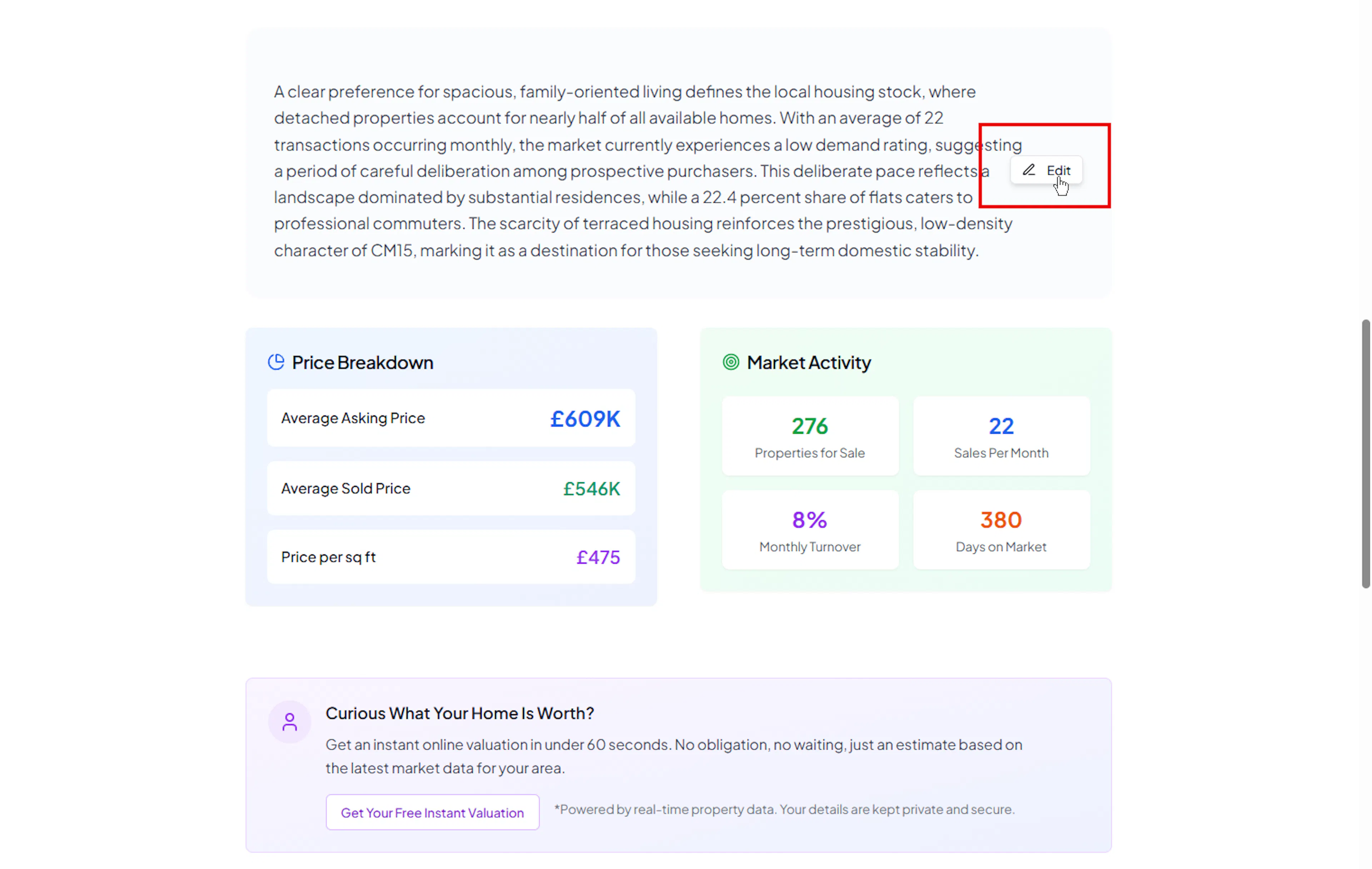
Editing report content
When you view a report in your dashboard (the private view), you can click on text sections to edit them:
-
Market summary - rewrite the AI-generated market overview in your own words
-
Market insight - customise the insight box with your local expertise
-
Section text - adjust any descriptive content throughout the report
Your edits are saved automatically. The public version of the report updates immediately.
Tip: Editing is only available in your private (logged-in) view. Visitors to the public link see the report as read-only.
Hiding and showing widgets
You can hide individual sections, stats, and data rows on any report type to create a cleaner, more focused report for your audience.
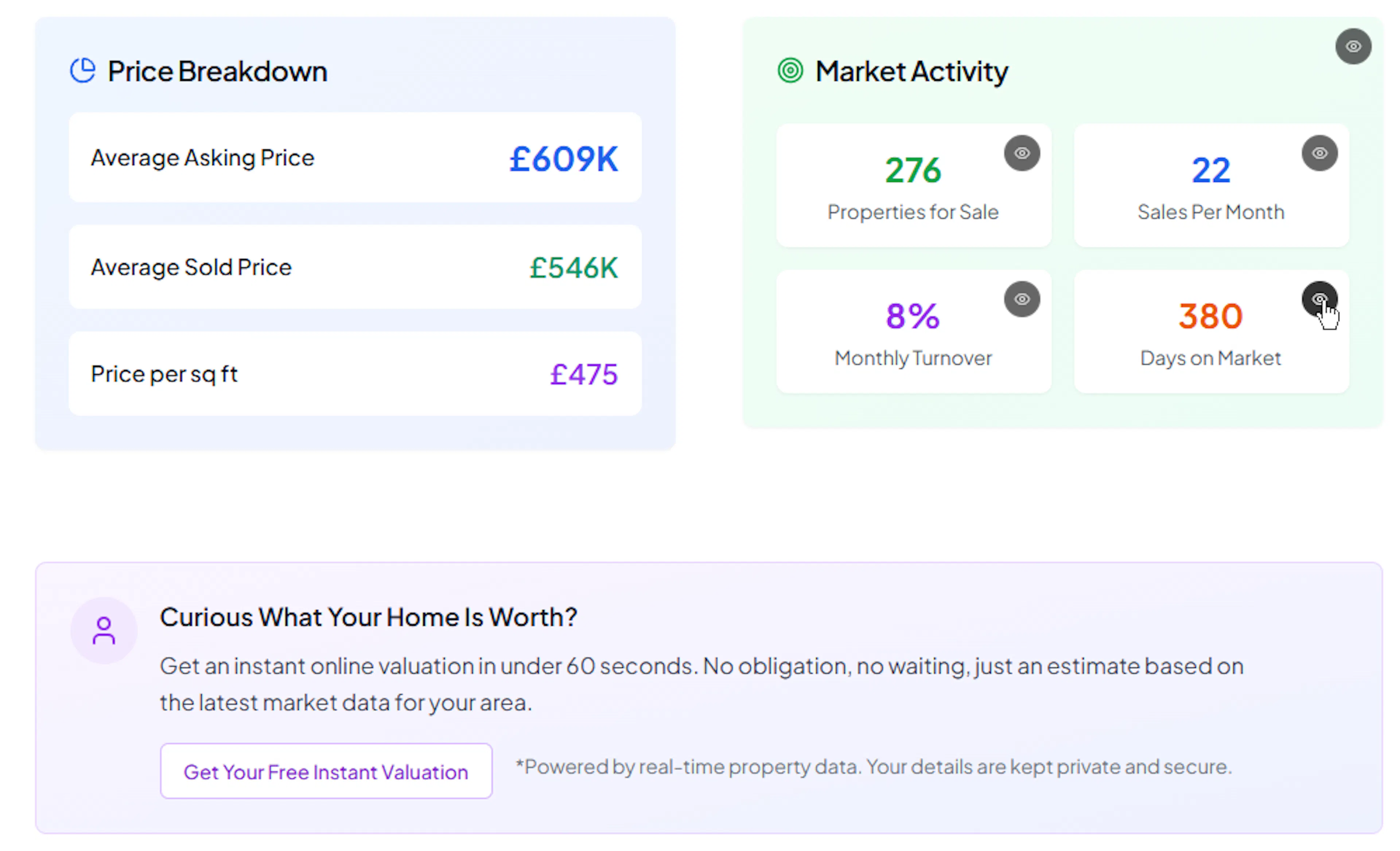
How it works
-
View the report in your private (logged-in) view
-
Hover over any section or stat to reveal an eye icon toggle
-
Click the eye to hide that widget
-
Hidden widgets appear as a collapsed placeholder in your private view so you can restore them later
-
In the public view, hidden widgets disappear completely and the layout reflows seamlessly
On mobile, the eye icons are always visible (no hover needed).
What you can hide
The level of control depends on the report type:
-
Magazine Intelligence - individual At a Glance stats, Price Breakdown rows, Market Activity cells, insight cards, timeline items, and recent sales entries
-
Data Sheet - the Market Price Trend timeline, individual Property Price rows, Growth Analysis rows, Sales Activity cells, and Market Insight bullets
-
Sellers Guide - entire sections, plus individual Market Trend, Market Demand, and Average Price cards
Visibility settings are saved per report and persist across sessions.
Widgets that start hidden
Two readings are hidden automatically when a new report is generated, because they work against a report you're handing to a potential seller:
- A Low demand rating
- A Decline market trend (when prices have fallen year on year)
Everything else shows as normal, including a High or Balanced demand rating and a Growth or Stable trend. Nothing is deleted: both cards sit in your private view as a collapsed placeholder, so if you'd rather show the honest downturn, click the eye icon to bring the card back and it stays visible from then on.
Sharing reports
Public link
Every report gets a unique public URL that anyone can view without signing in:
https://reports.marketrak.pro/report/your-report-slug
To share a report:
-
Open the report from your Library (the Reports tab)
-
Click the Share button
-
Copy the public link
Custom slugs
You can customise the URL slug for a more professional appearance. Instead of a random ID, use something memorable like:
https://reports.marketrak.pro/report/brentwood-market-update-march-2026
Edit the slug in the report settings.
The reports.marketrak.pro address creates the rich preview when you share it on social media, then opens the report directly on Market Trak's public-content site at mtrak.me.
QR codes
Each report can generate a QR code that links to its public page. This is ideal for:
-
Printed flyers and brochures
-
Window displays
-
Business cards
-
Physical marketing materials
Click the QR Code button on any report to download a high-resolution QR image.
Report themes
The Article Report and Data Sheet each offer multiple visual themes. The Sellers Guide does not (it always uses your workspace brand colour).
Article Report themes:
-
Magazine - the original Article Report look, slate-and-white with bold typography
-
Editorial (Area Spotlight) - a premium brochure aesthetic on a cream, forest-green, and gold palette with serif display typography. Designed to pair with the editorial post image style.
Data Sheet themes:
-
Default - clean, light layout
-
Dark - professional dark background with light text
-
Emerald - green-tinted theme
Sellers Guide:
The Sellers Guide automatically uses your workspace brand colour for its header gradient, with a violet fallback if no brand colour is set. There is no theme picker for the Sellers Guide.
The theme affects the public report appearance only: your edits and the underlying data are identical across themes, so you can preview different looks without regenerating the report.
Lead capture
When someone views your public report, they can be prompted to enter their details before seeing the full content. This is the lead gate, and it automatically captures leads into your workspace. The visitor enters their details, the lead is captured immediately (the form no longer requires a 6-digit verification code), and the report unlocks on the same page. The webhook to your CRM fires the moment the form is submitted.
See Managing Leads for more on how captured leads work.
Lead capture and the email signup form are an either/or choice, because the gate already collects the email the signup form would ask for. Switching one on switches the other off, and you will see its toggle change. You can also have neither.