

Engagement Tracking
Track who views your reports, where traffic comes from, and which leads are most engaged.
Market Trak tracks every view of your public reports so you can see which content resonates and which leads are most engaged.
Accessing engagement data
Go to Analytics in the sidebar (under Measure). Everything is one page, built for a quick glance. Pick your period at the top, 7, 30 or 90 days, and every figure on the page follows it, with the change against the equal period before. The page leads with your new leads for that period and a chart of how they arrived, then your posts published, report views, email opens and Bio link views, then a card for each part of your marketing that has something to show:
-
How they got here - how many people saw your reports and Bio link, against how many became a lead
-
Every channel and Top campaigns - where those leads came from, with percentages that add up to the headline number
-
Most-read reports (with the leads each one captured), Who's reading them and Where views come from - your reports' readership
-
How your emails land - the campaigns sent in the period, with their open rates
A card with no data simply does not appear, and every card names the period in its top corner. Your monthly patch report sits at the top of the page, and the Your patch toggle opens it in full.
Report engagement and email engagement used to live on separate tabs. They are all one page now, and old links bring you straight to the right card.
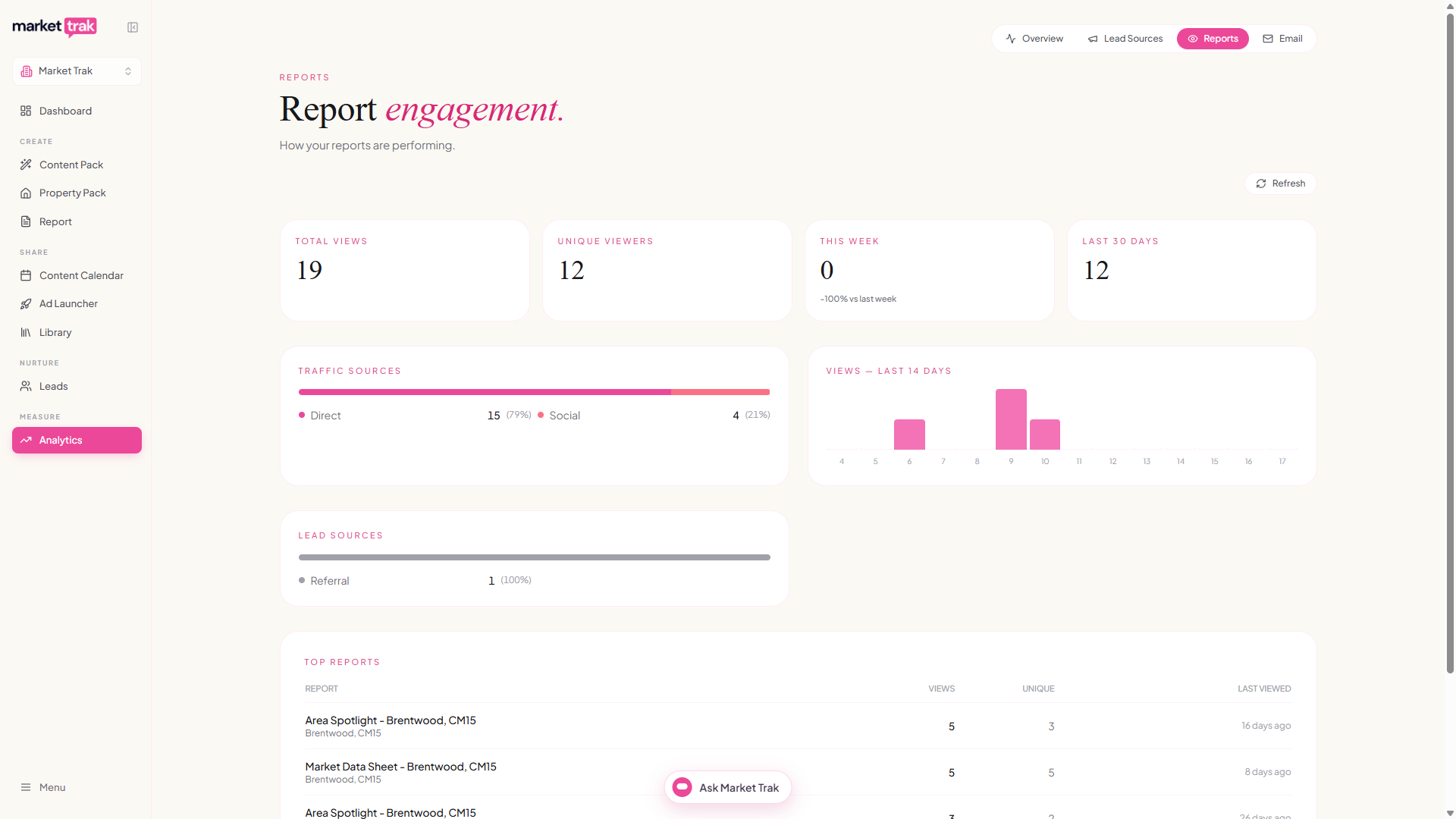
What is tracked
Report views
Every time someone opens a public report link, a view is logged. You can see:
-
Report views for your chosen period, with the change against the period before
-
Views per report to compare performance
Traffic sources
Market Trak works out where each view came from on its own. You do not need to tag your links or add anything to the URL you share:
-
Email campaigns - views from links in your email campaigns
-
Social - views from Facebook, Instagram and other social platforms, including taps from inside the Facebook and Instagram phone apps
-
Direct - someone typed the URL, used a bookmark, or opened your link somewhere private that cannot be identified, such as a text message or WhatsApp
-
Other - any other referral, such as a link to your report from another website
Share your report link exactly as Market Trak gives it to you. Facebook adds its own tracking marker when someone taps the link, which is how those views are recognised as social, so there is no need to add anything yourself.
Top reports
A ranked list of your most-viewed reports, so you can see which locations and topics generate the most interest.
Top leads
If a lead clicks a report link from an email campaign, their click is attributed to them. This lets you see which leads are most engaged with your content, helping you prioritise follow-ups.
How UTM tracking works
When you send an email campaign that includes a report link, Market Trak automatically appends UTM parameters:
-
utm_source=markettrak -
utm_medium=email -
utm_content={lead_id}(links the view back to the specific lead)
You do not need to configure anything. UTM parameters are added automatically to all report links in campaign emails.
Lead sources
The Every channel card shows where your period's leads came from, with a percentage for each channel, so the breakdown always adds up to the big number above it (imported leads included, as their own row). Top campaigns does the same for the campaigns that produced them, and How they got here puts the people who saw your reports and Bio link against the ones who became a lead.
For what each channel label means and how to tag your ad and post links so the labels stay accurate, see Where your leads come from.
Attribution is captured automatically on instant valuation pages, locked report lead gates, and email signup forms, and forwarded in webhook payloads. You do not need to configure anything.
Email open tracking
Email engagement is the How your emails land card on the Analytics page. It shows:
- Email opens for your chosen period, with the blended open rate of the campaigns sent in it
- Each campaign with its recipients, when it went, its opens and its open rate, strongest rates highlighted
Email open tracking is automatic. Every campaign email includes a tracking pixel that records when a lead opens the email.
Using engagement data
-
Follow up with engaged leads - if a lead has viewed your report multiple times or opened your emails, they are likely interested
-
Double down on popular locations - generate more reports for areas that get high view counts
-
Refine your campaigns - if email-driven views are low, try different subject lines or send times