Scheduling and Publishing
Schedule posts for future publishing and connect Facebook for direct posting.
Plan your content calendar by scheduling posts in advance. When connected to Facebook, Market Trak publishes them automatically at your chosen time.
Scheduling a post
When creating or editing a post:
-
Instead of publishing immediately, click Schedule
-
Pick a date and time
-
Confirm the schedule
Your post will appear in your content calendar and publish automatically at the scheduled time.
How scheduling works
-
A background job checks for scheduled posts and publishes them when the time arrives
-
Posts are published to all connected platforms (currently Facebook)
-
You receive a notification when the post is successfully published
-
If publishing fails (e.g. expired token), you will be notified so you can retry
Content calendar
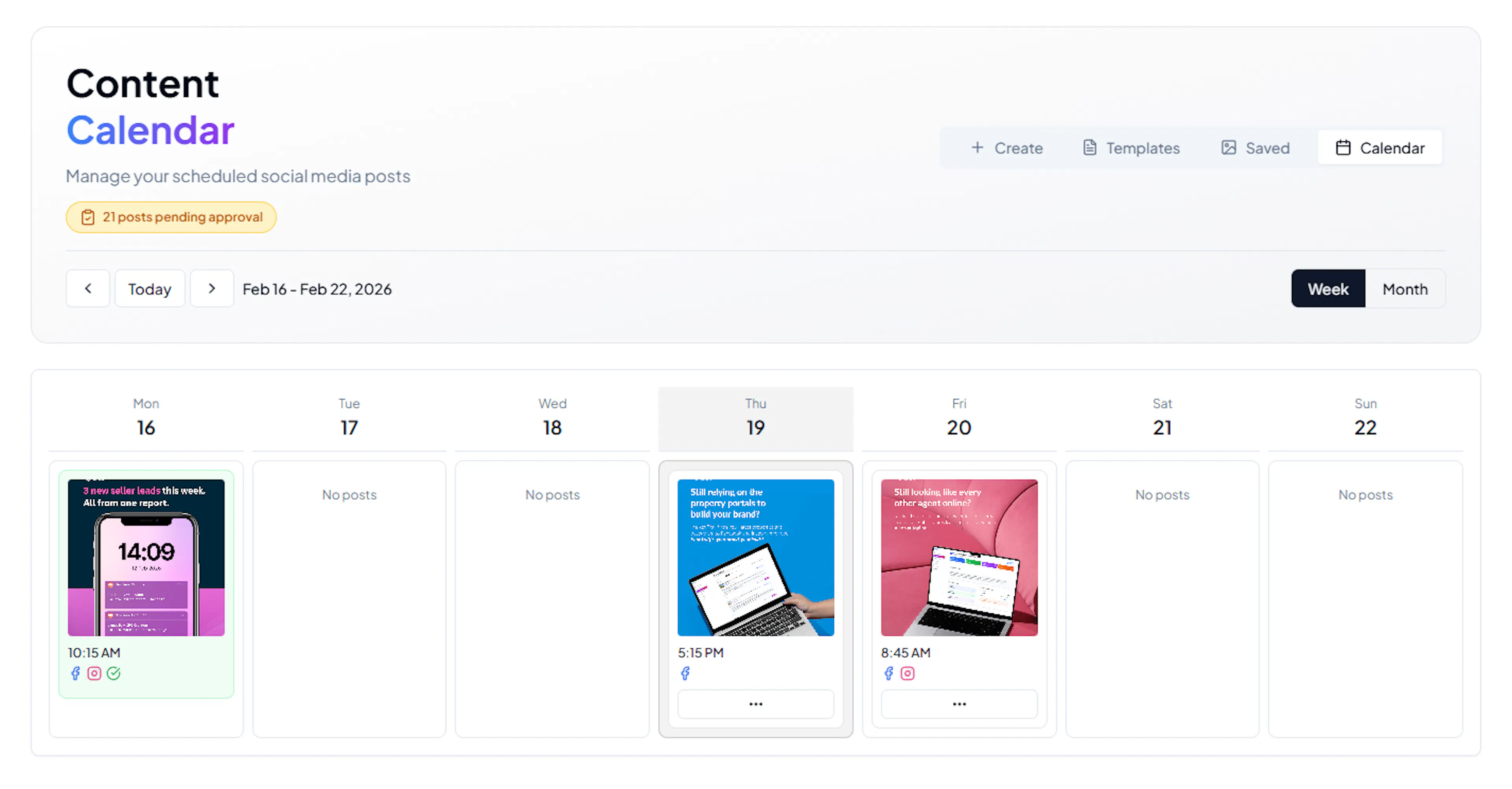
The Social Posts page shows your upcoming and past posts in a calendar view. Each day shows:
-
Scheduled posts waiting to go out
-
Published posts with their status
-
Platform indicators (Facebook, Instagram)
This gives you a visual overview of your content cadence, so you can spot gaps and plan ahead.
Creating posts from the calendar
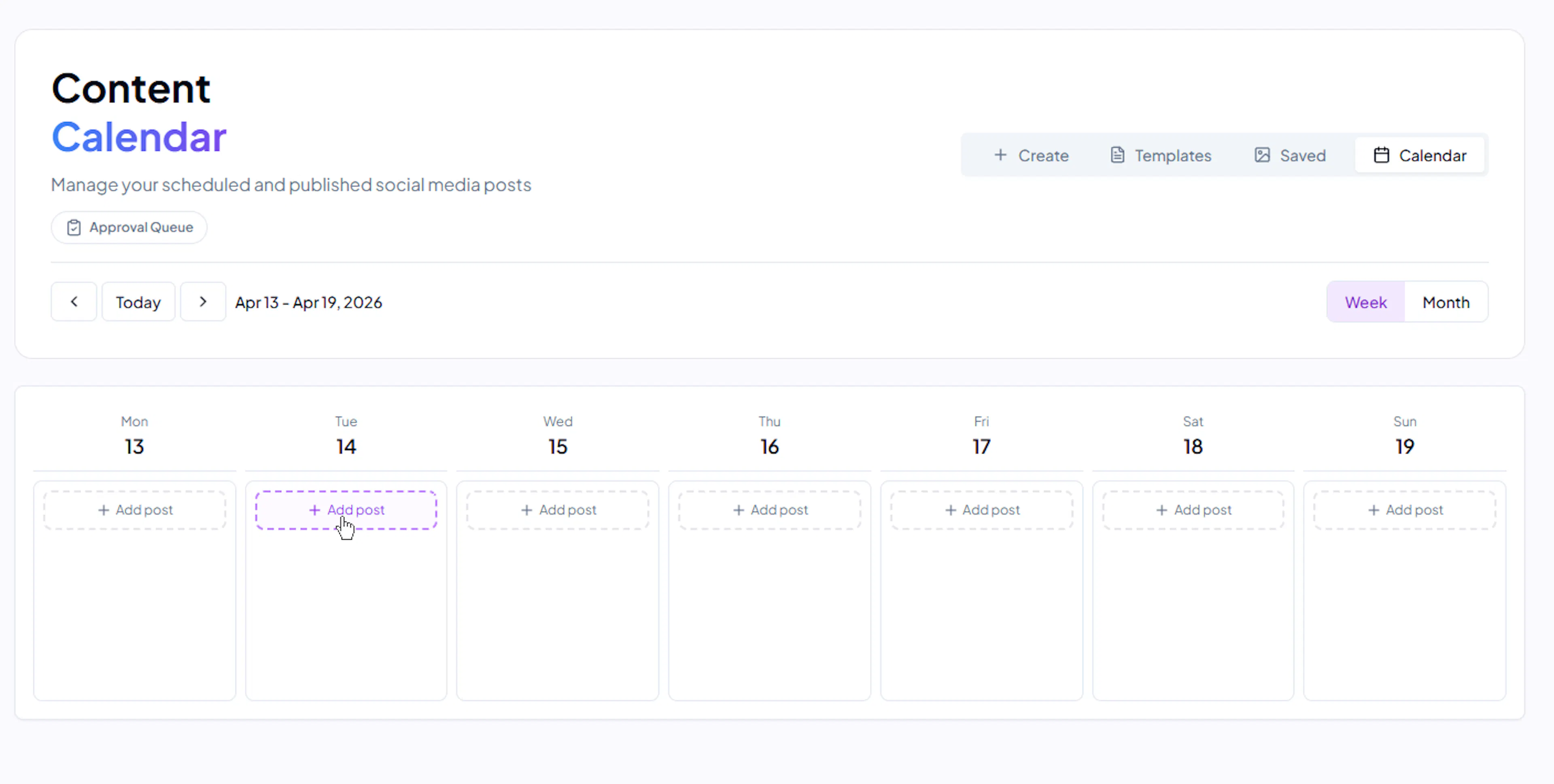
You can create new posts directly from the calendar by clicking the Add Post button on any day (today or future dates). A panel slides in from the right where you can upload media, write a caption, choose platforms, and schedule or publish immediately. See Creating Posts for full details.
/image
Viewing and editing posts
Click any post on the calendar to open a preview panel. From there you can edit the caption, change media, update platforms, reschedule, or delete the post without leaving the calendar.
Deleting removes the post itself, not just its place on the calendar, so it will not reappear on its Content Pack or in your Library. If you only want it to go out on a different day, change its date instead of deleting it.
A published post has a Post Again button. It schedules a copy for a new date and time, and you choose which channels the copy goes to, so a post that went to Facebook can go out again on Instagram, or both.
Publishing to Facebook
To publish directly to Facebook, you need to connect your Facebook account first. See Facebook Integration for setup instructions.
Once connected:
-
Create your post as normal
-
Choose Publish Now or Schedule
-
The post, including image and caption, is sent directly to your Facebook page
Video posts
Market Trak supports video content for social posts. You can upload a video when creating or editing a post, and it will be published alongside your caption. Video upload is available in the calendar's post composer (via Upload your own) and when editing an existing post.
Downloading for manual posting
If you prefer to post manually (e.g. to Instagram, which does not have direct API publishing), you can:
-
Create your post in Market Trak
-
Right Click to save the image
-
Copy the caption text
-
Post it manually on your chosen platform
This lets you use Market Trak as your content creation studio while posting wherever you like.
Post statuses
| Status | Meaning |
|---|---|
| Draft | Saved but not scheduled or published |
| Scheduled | Set to publish at a future date/time |
| Published | Successfully posted to Facebook |
| Failed | The post did not go out. Click it to see why: the most common reason is a Facebook connection that needs reconnecting |
| On hold | Shown in amber. Your plan is inactive, so this post stays on your calendar but will not publish. Pick a plan and it goes out on the date you set |
| Waiting for credits | Shown in amber. Your balance was empty when the post came due, so it is waiting rather than failing. Top up and it goes out on its own, as long as its time has not passed by more than a day |
| Missed | Shown in amber. The date passed more than a day ago, so it will not publish on its own. Pick a new date to send it |
Tips
-
Schedule posts for when your audience is most active (typically mornings and early evenings)
-
Maintain a consistent posting rhythm, aim for at least 2-3 posts per week
-
Use the calendar view to identify gaps in your schedule
-
Mix data-driven posts (market updates) with property-specific posts for variety